How to migrate to Framer from an external proxy
A step-by-step guide on how to move your site from an external proxy to Multi Site. This guide produces no downtime!
With the following setup you are ready to migrate from another reverse proxy service, such as CloudFront or Vercel.
URL | Info |
|---|---|
| Staging domain (also available when staging is disabled) |
| Framer production domain – The reverse proxy proxies to the this domain |
| Main domain (what visitors use) – The DNS of this domain points to the reverse proxy |
If you have Staging enabled, make sure Staging and production are aligned. Do not publish until completing all steps.
Migration Steps
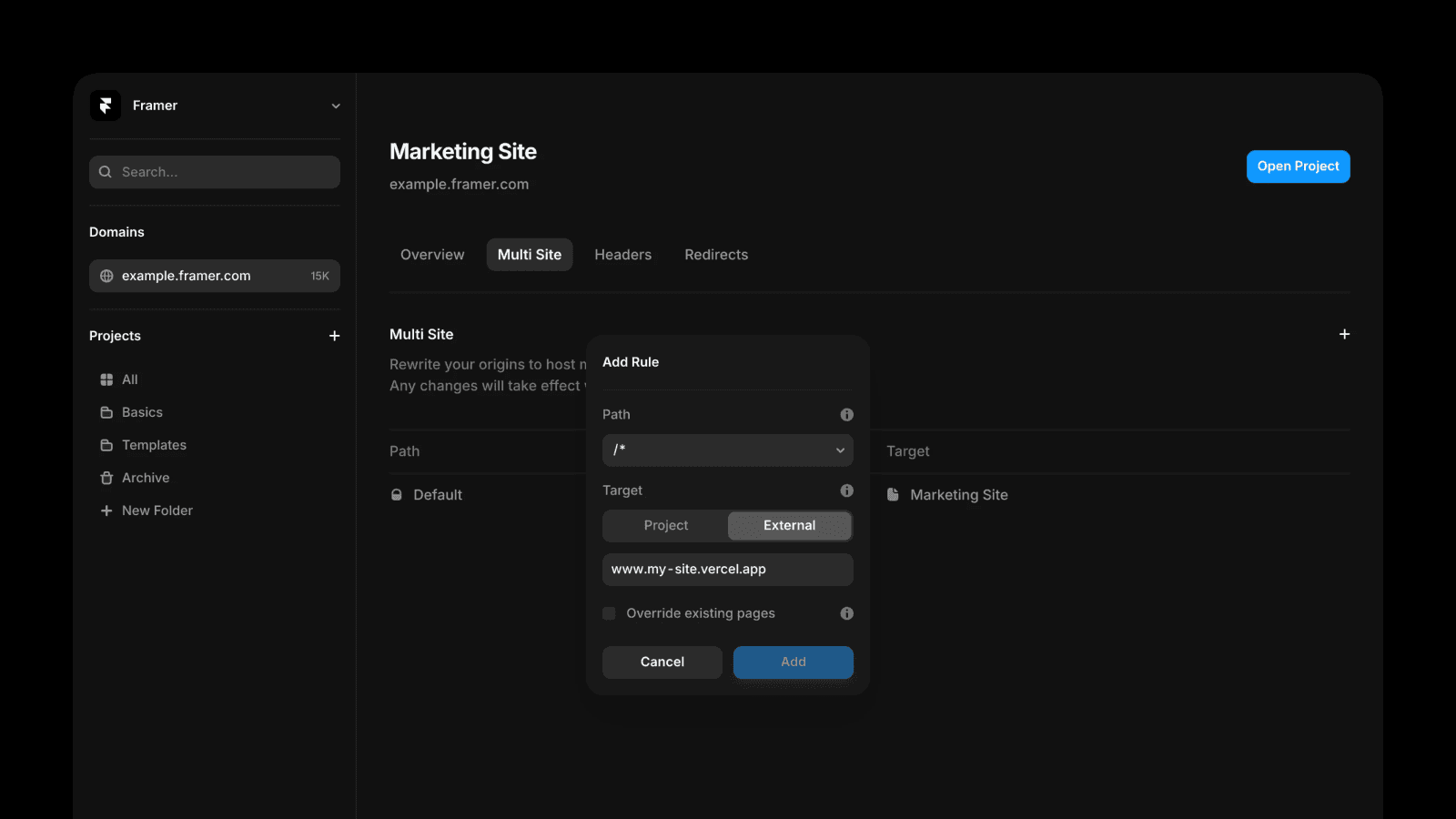
1. Add Multi Site rewrites
In the Framer dashboard, select your domain example.framer.website in the sidebar and add the rewrite rules in the Multi Site tab. Learn more about Multi Site rewrites.
2. Validate Multi Site rules
Confirm staging example.framer.app and Framer production domain example.framer.website are working as expected to validate that the new rules are working.
3. Route traffic to Staging
Change the reverse proxy (e.g. CloudFront, Cloudflare, Vercel) to proxy to the staging domain example.framer.app.
4. Verify production traffic Is disabled
Make sure the reverse proxy is updated and no traffic is being sent to the Framer production domain example.framer.website.
5. Remove Framer production domain
Remove example.framer.website from the Framer project (add it to another Framer project if you’d like to keep it).
This is safe because the staging domain (
example.framer.app) is getting the traffic via the reverse proxy.
6. Attach main domain
Add the main domain example.com to the Framer project.
This is safe because the DNS for the main domain (
example.com) is still pointing to the reverse proxy.
7. Update DNS records
Point the DNS records to the main domain example.com to Framer. Make sure you remove any AAAA records and the CAA records are correct, so Framer can issue TLS certificates for the main domain. For any appearing issues, see also this guide.
Set the DNS records showed in the Framer project from previous the step. Learn more about connecting a custom domain.
Use TTL 0 (can be updated later after everything works).
Depending on your registrar, you may not be able to update existing records, and if you were using A records before (also for www), the safest way to prevent downtime is to update the existing A records:
Replace the old
Arecords with the FramerArecords.Note that Framer’s DNS validation checks for a
CNAMErecord to be set for www, so you might see “Invalid DNS” in the Framer UI, but if theArecords you set are correctly pointing to Framer, you can ignore this.
Rollback
Point your DNS back to the external reverse proxy → Use
TTL 0.Everything should be back to normal after DNS changes take effect, because the reverse proxy proxies to the staging domain
example.framer.app.
Updated