This lesson was released before Agents, Branching, and the CMS update on June 16, 2026. Some UI may differ, but the core concepts still apply.
Intro to components in Framer
Components are the building blocks of scalable and efficient design in Framer.
In this Framer tutorial, you will learn Intro to components in Framer. We explain a practical workflow, highlight the key settings that affect the result, and show how to apply the technique on real pages for cleaner UX and better site performance. See Sharing Components.
How do I create a reusable component in Framer?
Select the element on the canvas, then create a component from it by right-clicking and choosing Create Component or by pressing Option Command K on macOS or Control Alt K on Windows. Framer will open a dedicated component canvas where you can add variants like Hover or Press, and create additional variants like an inverted version. Insert instances from the Assets panel, with Command K quick actions, or by replacing an existing layer with the component.
How can I customize instances of a component while keeping its core properties the same?
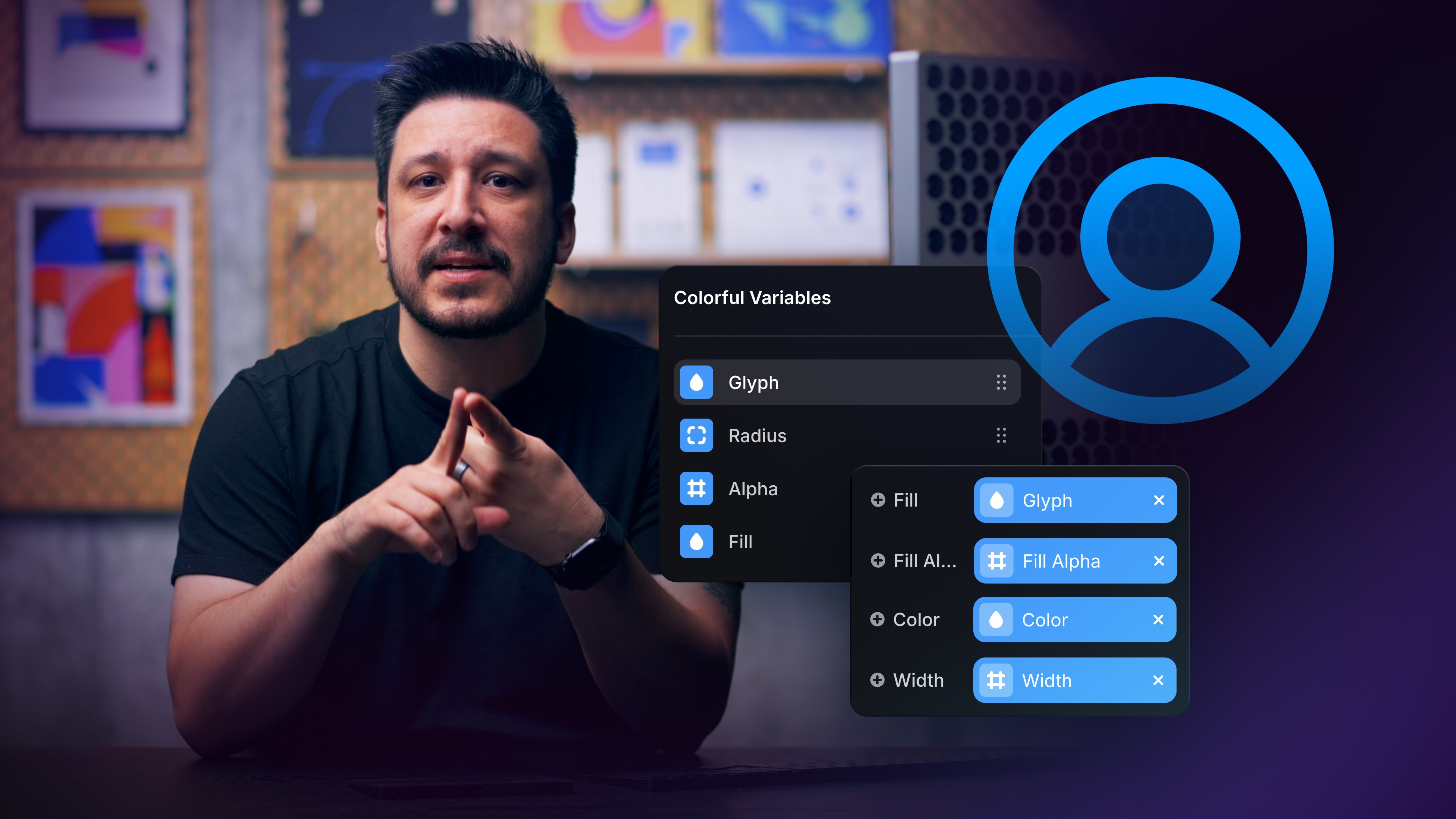
Expose only the parts that should vary by creating variables on specific properties. For example, select a text layer inside the component, open the Content property, and click the plus icon to Create Variable so each instance can set its own label. Do the same for visibility, colors, corner radius, or padding when needed. Instances inherit structure, layout, and shared styles from the component, while variables let each instance override just the intended fields.
How do I organize and manage components in a project?
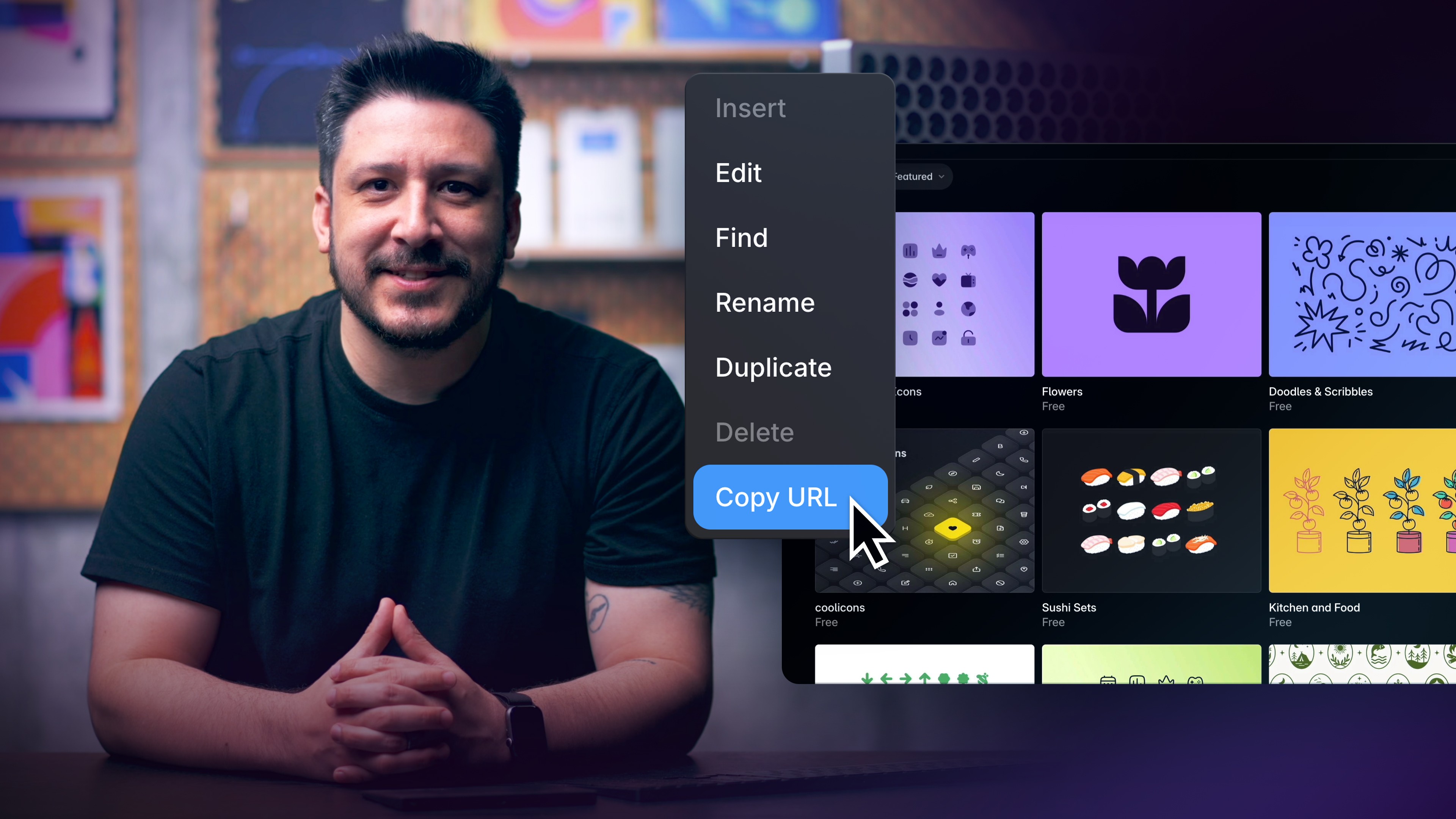
Use clear naming with slashes to create folders in the Assets panel, for example Buttons/ Primary CTA. Insert, edit, rename, duplicate, or delete components from the Assets panel menu. Group related components into folders and sort alphabetically as the library grows. When components should be reused across projects, add them to the Workspace Library so other projects can insert linked instances and pull updates. You can also copy a component URL to share it with your teammates or the community.

Lesson details