Localized page paths
How to translate the URL paths of all pages in your Framer site, and why it matters for visitors and SEO.
Translating page paths helps you offer a more natural, localized browsing experience and improves how search engines index your content across different languages.
Why translating page paths matters
Page paths are the parts of a URL that appear after your domain. For example:
example.com/aboutexample.com/blog/my-article
In Framer, these are the page names you see in the page panel, and they turn into the paths in your URL. Translating page paths creates a smoother, more native experience for visitors browsing in their own language and helps search engines properly index localized content, improving your SEO and visibility in different markets.
In Framer, these come from the page names you see in the page panel. Translating them creates a more native experience for visitors and helps search engines properly index localized content, improving SEO and visibility in each market.
Enable translated page paths
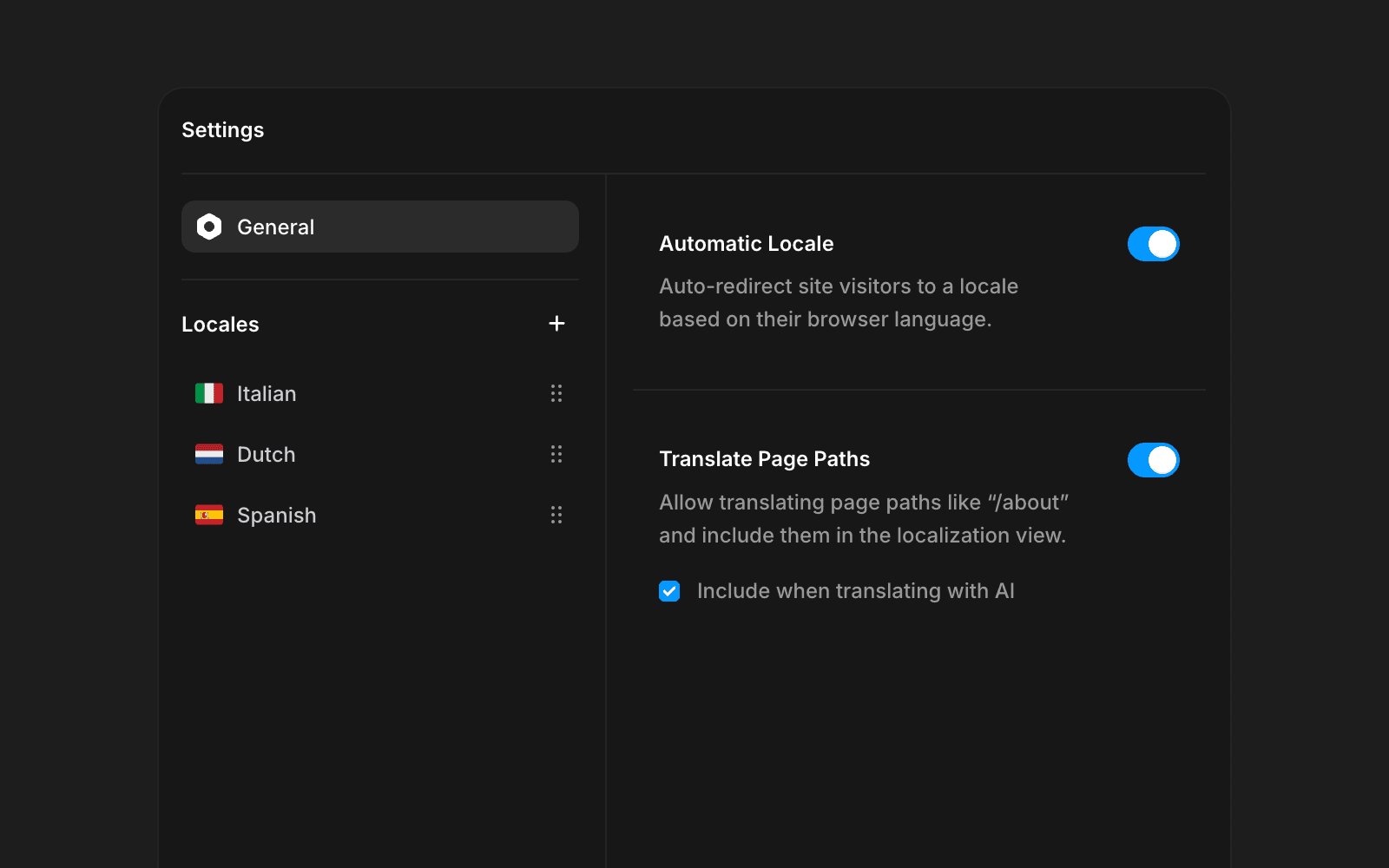
To start translating your page paths, turn on the setting in the Localization view.
Open the Localization view.
Click Settings.
Toggle Translate Page Paths on.
If you already translate CMS slugs (such as blog posts), this option is enabled by default. You can also enable AI translation for page paths if you plan to use AI within Localization.
Once enabled, translated page paths appear below page headers. Click any path under a specific locale to edit it. This lets you manage all localized paths from a single overview.
Translate page paths from the canvas
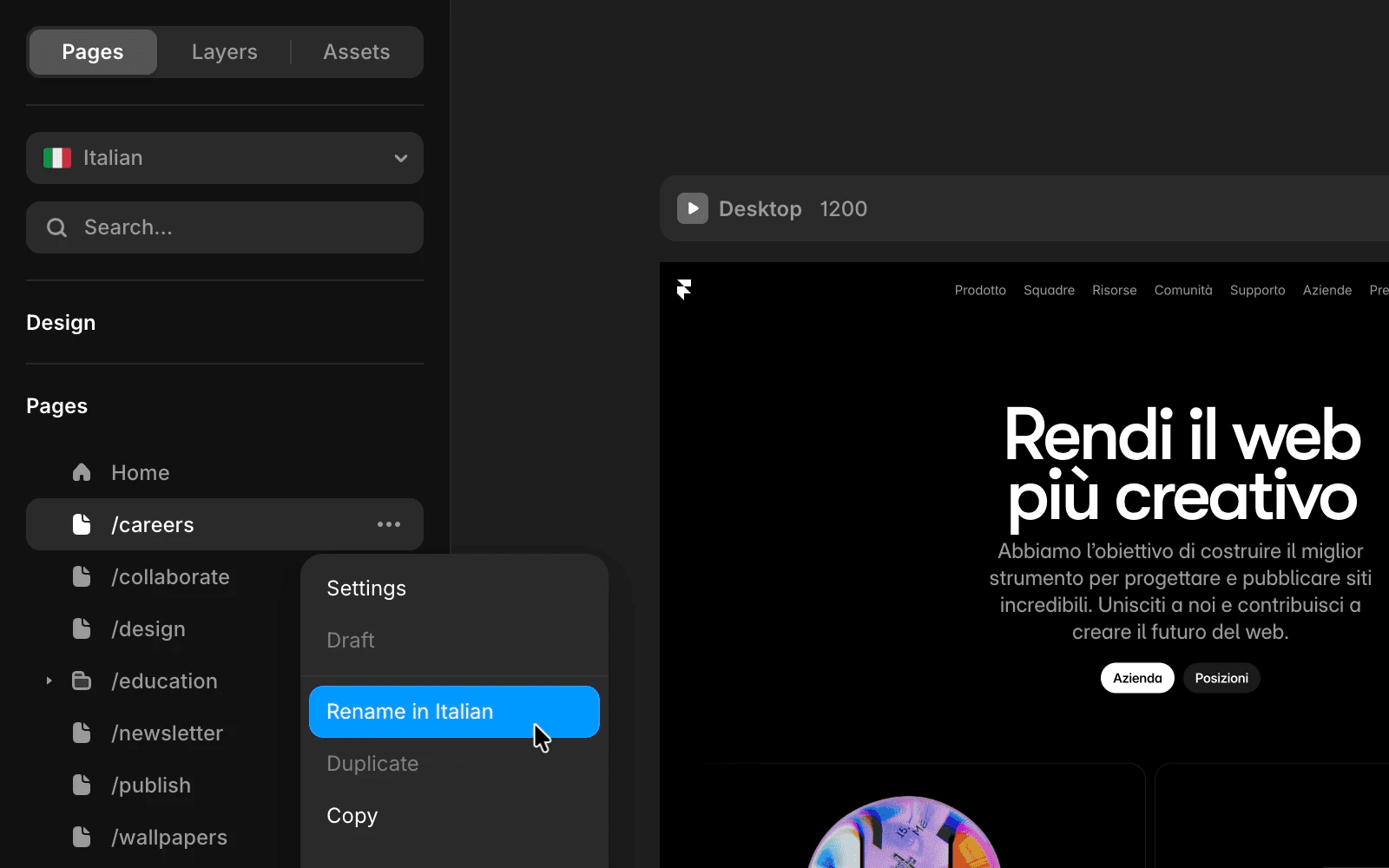
You can also translate paths directly where you normally rename your site’s pages.
Open the Page panel in the canvas.
Use the locale switcher to select a locale (for example, Italian).
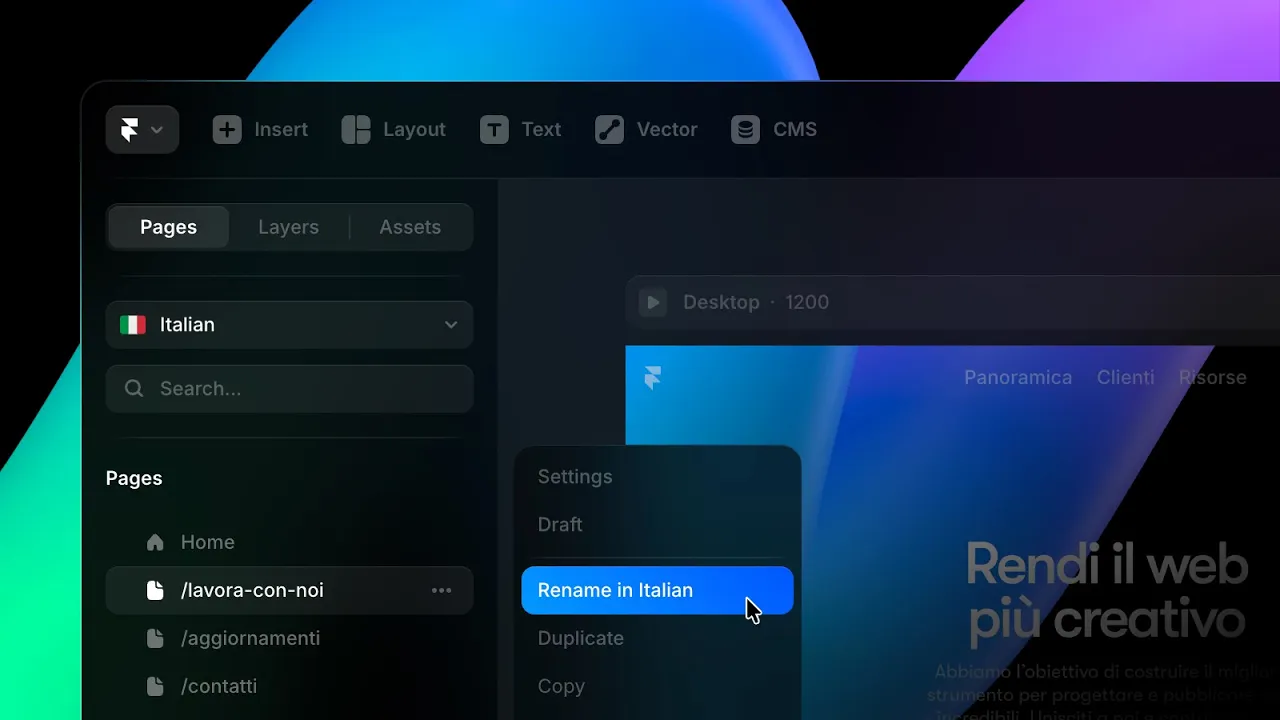
Right-click a page like
/careersand choose Rename in Italian.Enter a locale-specific path, such as
/lavora-con-noi.Repeat for other locales, such as
/werken-bij(Dutch) or/empleos(Spanish).
Each locale can have its own version of a page path, while still linking to the same underlying page.
Publish and verify the localized paths
After translating your paths, publish your site and visit it live. Use the locale switcher on your published site and watch how the URL updates based on the selected language. For example:
Italian:
/lavora-con-noiDutch:
/werken-bijSpanish:
/empleos
Handling page path conflicts
Framer warns you if a translated path conflicts with another route in any locale. When this happens, you’ll see a clear indicator so you or your translators can fix the issue before publishing.
Summary
By enabling and translating page paths, you can:
Fully localize every part of your site
Offer natural, language-specific URLs
Improve search engine understanding and ranking of your localized pages
Use the Localization view for full oversight and the Page panel for quick edits
Once configured, your site will feel more native in every language and have improved SEO.
Updated