

What is A/B testing?
A/B testing compares two or more versions of an element contained in marketing collateral, such as a web page, email, or ad. The tested element could be visual, like hero imagery, written, like headline copy, or experimental, like button placement.
The goal of the test is to determine which version of that element does a better job at getting your users to do a certain action, such as converting or clicking through to your website.
The process starts with a hypothesis: that changing a specific element of a page will increase conversions. Then, to execute the test, you’ll take your original or “control” page and make one or more variant pages, each with a change applied to that element.
Your testing tool will split traffic to different pages, with one random group seeing the control page (A) and another seeing the variant page (B). Your tool will make sure that each group consistently sees the same version of the page across multiple site visits.
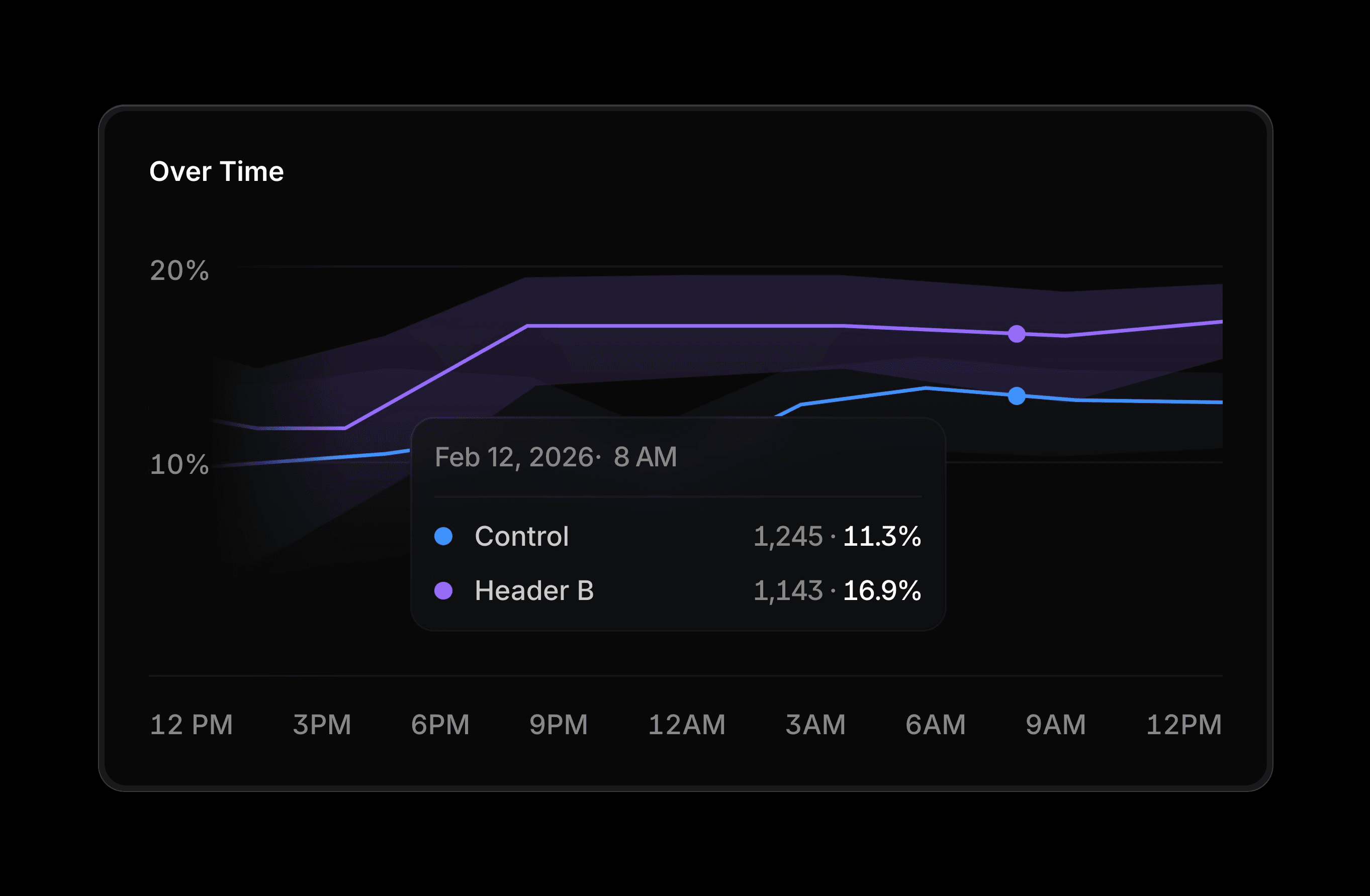
As the test runs, your tool will continuously track how many visitors take the desired action on each version of the page. Once a sufficient number of visitors have experienced both variations and the data reaches statistical significance, the tool will confidently declare a winner between the control (A) and the variant (B), based on measured performance differences.
You can test more than one variable at a time, though that approach comes with caveats. Multivariate testing tools let you test multiple changes at once, like changing a headline in combination with a different button CTA. Each variant receives less traffic than in a strict A/B test, so you will likely need more total visitors to reach statistical significance.
A/B testing vs. landing page split testing
While A/B testing allows you to test individual elements on a page, landing page split testing compares entire landing pages to see which one does a better job at getting your users to convert. Conversion events you might track with landing page split testing include actions such as completing a purchase, signing up for a newsletter, starting a free trial, or submitting a contact form.
What should I A/B test?
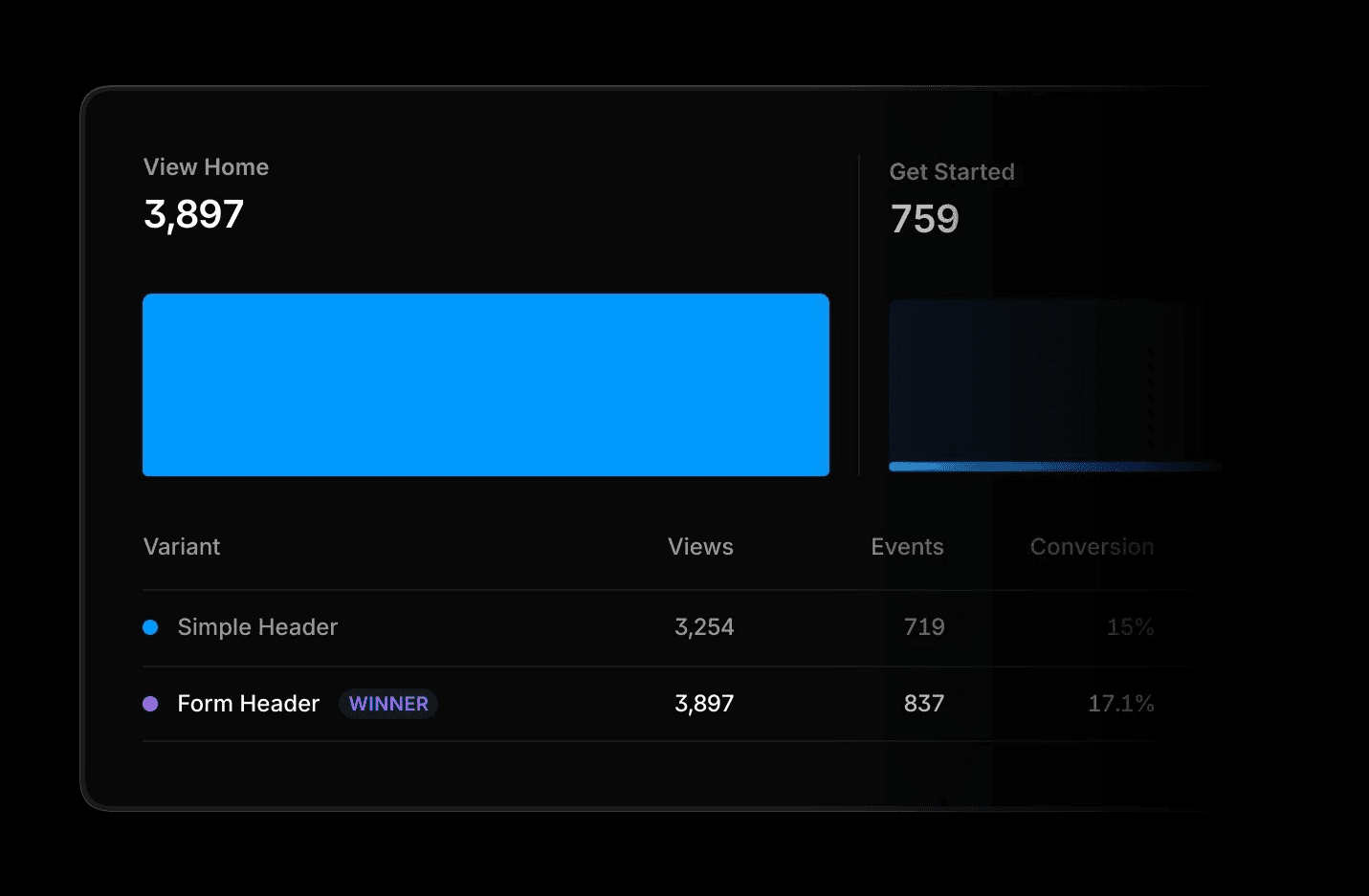
You can split-test nearly any element on a landing page via A/B testing, but here are a few elements that are commonly tested:
Headlines. People respond differently to headlines depending on the emotions a headline evokes through tone, word choice, and content. You can split-test short, punchy headlines against long, informative headlines, humorous against serious, and questions against statements.
Hero imagery. You can test different versions of a hero image to see which converts more users. You might try testing graphics vs. illustrations vs. photographs, full-bleed images vs. bordered images, and image orientation.
Call to action (CTA) copy. This is the copy that tells users what to do on your landing page, often housed within a button, such as make a purchase (Order Now), sign up for a newsletter (Subscribe), or enter a members-only section of the site (Sign In). You can test short, action-oriented phrases against bolder brand voice options.
The placement of a CTA button. CTA placement can significantly impact conversions. A common debate is whether buttons perform better above the fold or below the fold, though many websites use both to capture attention at different moments.
Generally speaking, above-the-fold buttons are more likely to convert when the product or service is easy to understand or free. Below-the-fold buttons are more likely to convert when users benefit from taking in additional content before being prompted to take an action. You’ll want to avoid placing CTA buttons in banners, as users now tend to ignore information at the top of a page (an effect called banner blindness) and in the right rail.
Forms. Some businesses collect user information via forms. You can A/B test a longer form against one with fewer fields, or test a form with fewer required fields against one with more. Another option is to try experimenting with different types of fields, open response fields vs. dropdowns for example, to see which type increases the number of form submissions you get.
Copy. While copywriters might want to test different language and messaging, designers may want to test the amount and density of copy on the page. You might test a lean, skimmable version of your copy against a denser and more detailed version. In general, shorter chunks of information often perform better.
How to perform a landing page A/B test
Once you’ve chosen an element to test and have an idea about the outcome (your hypothesis), it’s time to do the testing. Here are seven steps to find out whether your hypothesis is correct.
Step 1: Pick your testing tools
Some website building platforms, like Framer, include built-in, easy-to-use A/B testing tools that let you get started quickly without any additional setup. You can also use third-party solutions like Convert, Eppo, or VWO, to run and manage your experiments.
Whichever option you choose, make sure your tool can reliably split traffic between variations in a randomized way and accurately measure the outcomes that matter most, whether that’s clicks, sign-ups, purchases, or other key conversion events.
Step 2: Build your variations
Next, you’ll define the control and the variant page(s). In Framer, the live page will automatically be your control page, and it will generate a copy of the page for you to implement your experimental change. Framer allows you to create up to five variants per control page, then rename each of them to make it easier to remember which is which when testing.
Step 3: Define your conversion events
Next, define the outcome you want to measure. For example, if you’re testing whether a change to the wording of an “Add to cart” CTA increases clicks, set that click as your goal. The tool will then track how each variation performs against that specific action.
In Framer, you’ll click “Configure” to open the Analytics tab and define what action will count as the conversion step on your page.
Step 4: Get ready to launch
As you prepare to launch, make sure you can allocate enough time to the test to get the volume of traffic needed to get statistically significant results. Your testing tool will typically calculate your minimum sample size—essentially the number of visitors you’ll need to reach statistical significance for each variation you’re testing, though an online calculator can also help.
You’ll also want to consider the timing of the test and how it may overlap with promotions or irregular days for your audience, like weekends or holidays. If you only run it on non-regular days, the results might skew.
Step 5: Launch and monitor
When you launch your test, your tool will split traffic between the control and variant pages and continue running until each version has enough data to confidently declare a winner. But before you sit back and let it run, there are still a few things to check.
First, check to make sure no changes you made to the variant(s) broke anything on the page. Even if you check previews of the pages, you’ll still want to check the live pages to be sure.
While the test runs, hold off on running other site changes, like further design tweaks or copy updates. These could end up raising or lowering your testing variable outcomes, which interferes with the experiment.
In Framer, you can monitor key metrics as the test runs. The tool will tell you how many days it estimates are left before it can declare a winner. In Advanced Analytics, you can see the conversion rate and the lift (the percentage of increase or decrease in the conversion rate of the variant over the control) for each page, and which has the probability of being best, which shows how likely it is that one version would keep winning if you let the test run longer. Framer will declare a winner at 90% probability.
With more than two variants, Framer shows the probability of each variant being the best performer. A higher percentage suggests a stronger candidate, but the difference between variants is what indicates whether the lead is meaningful or still uncertain.
These probabilities update continuously as new visitor data comes in, so early results can be volatile. While they’re useful for spotting trends, it’s best to wait until the numbers begin to stabilize before making a decision.
Step 6: Analyze test results
When the data settles, look beyond a single metric. Compare conversion rate and lift, then sanity-check by segment: desktop vs. mobile, new vs. returning, paid vs. organic. If, for example, the lift increases only on mobile devices, then the result is contextual; you’ll want to make the change only for mobile users, leaving the desktop version of the page alone.
If there was no clear winner, it doesn’t mean the test was a waste. It just means the changes didn’t move the needle much. That’s still a win—you’ve learned where not to spend more time. In that case, you can stick with the control or go with the variant that shows the higher score, as long as you know the margin might be noise.
Step 7: Roll out the winner
Once you’ve got a clear winner—or, if it was too close to call, and you’ve decided which page to deploy—go ahead and send all traffic to it. In Framer, that’s just hitting “Stop Test,” picking the variant that pulled ahead, and letting it replace the control. Hit publish so your entire audience sees the new version. Then, keep an eye on the numbers for a few days to see if the lift sticks.
Set up an A/B test in minutes with Framer
A/B testing gives you a practical way to move from assumptions to evidence. Instead of guessing what might work, you can make decisions based on how real users actually behave.
With Framer, running tests is straightforward. You don’t need external tools or code, just a clear hypothesis and minutes to set things up. From there, you can continuously test, learn, and refine your pages to drive better results over time.
