How to proxy with Cloudflare
You can use Cloudflare with Framer to enable reverse proxying—ideal for advanced use cases like traffic management, custom routing, and compliance with infrastructure policies.
FAQ
How do I set up reverse proxying for my Framer site using Cloudflare?
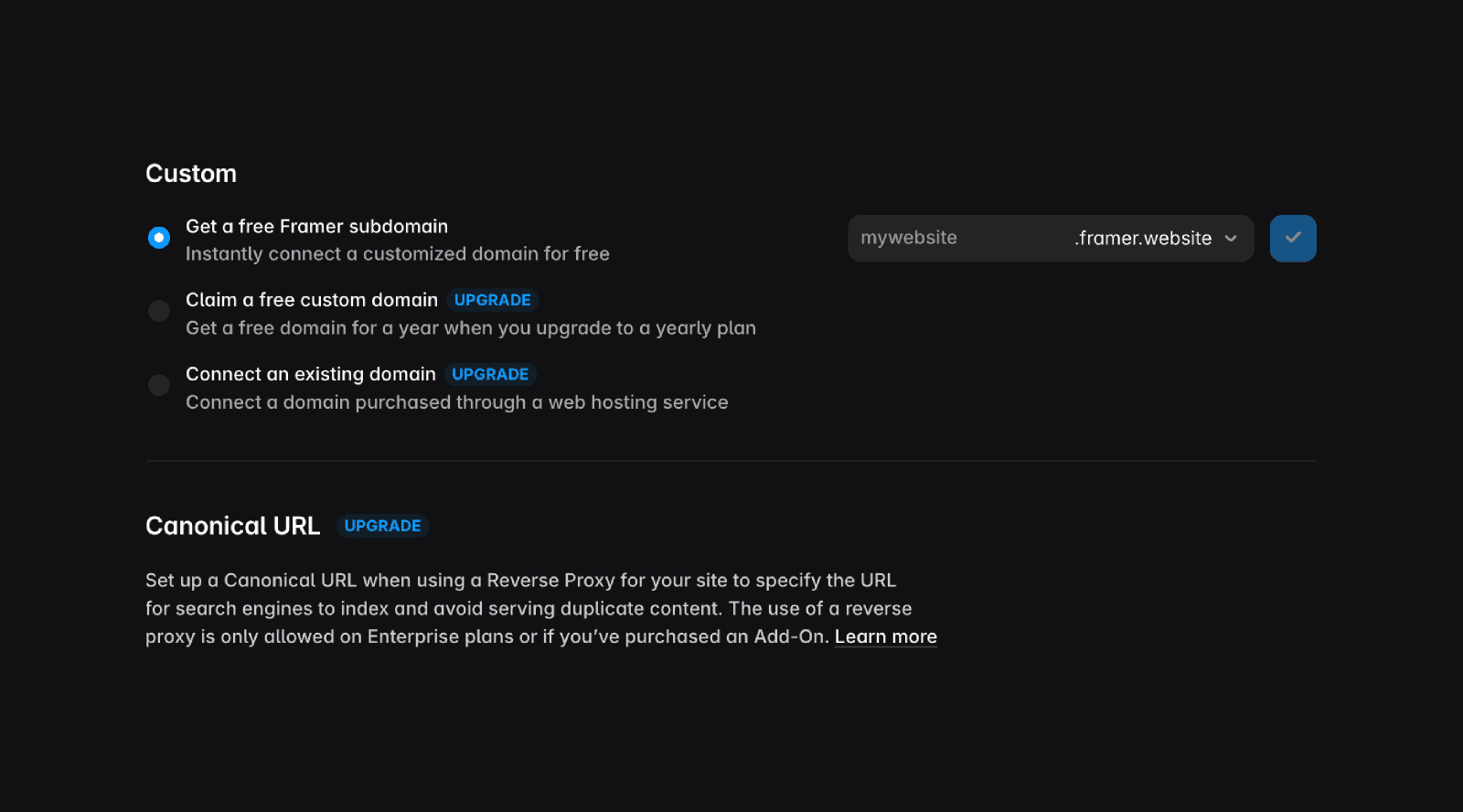
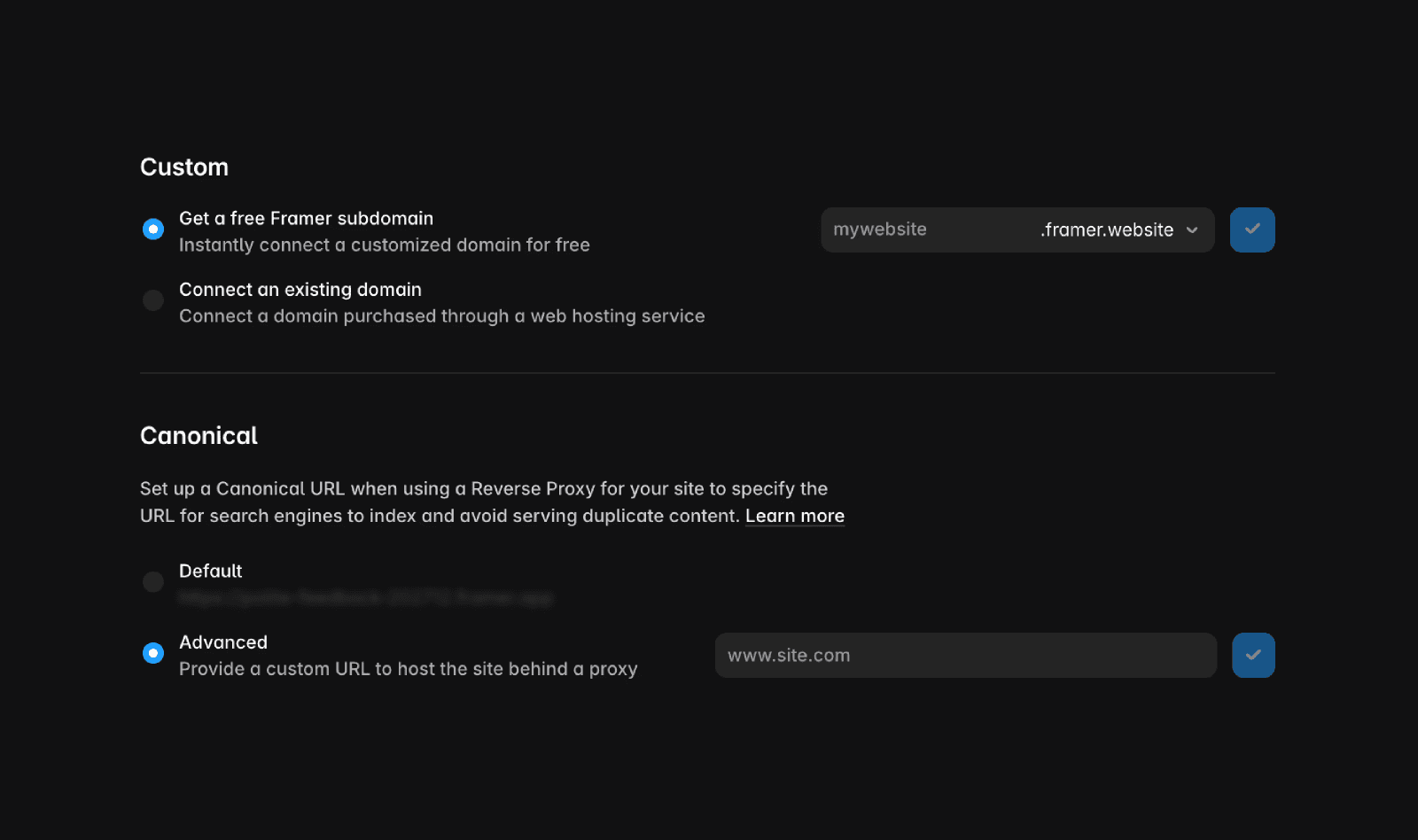
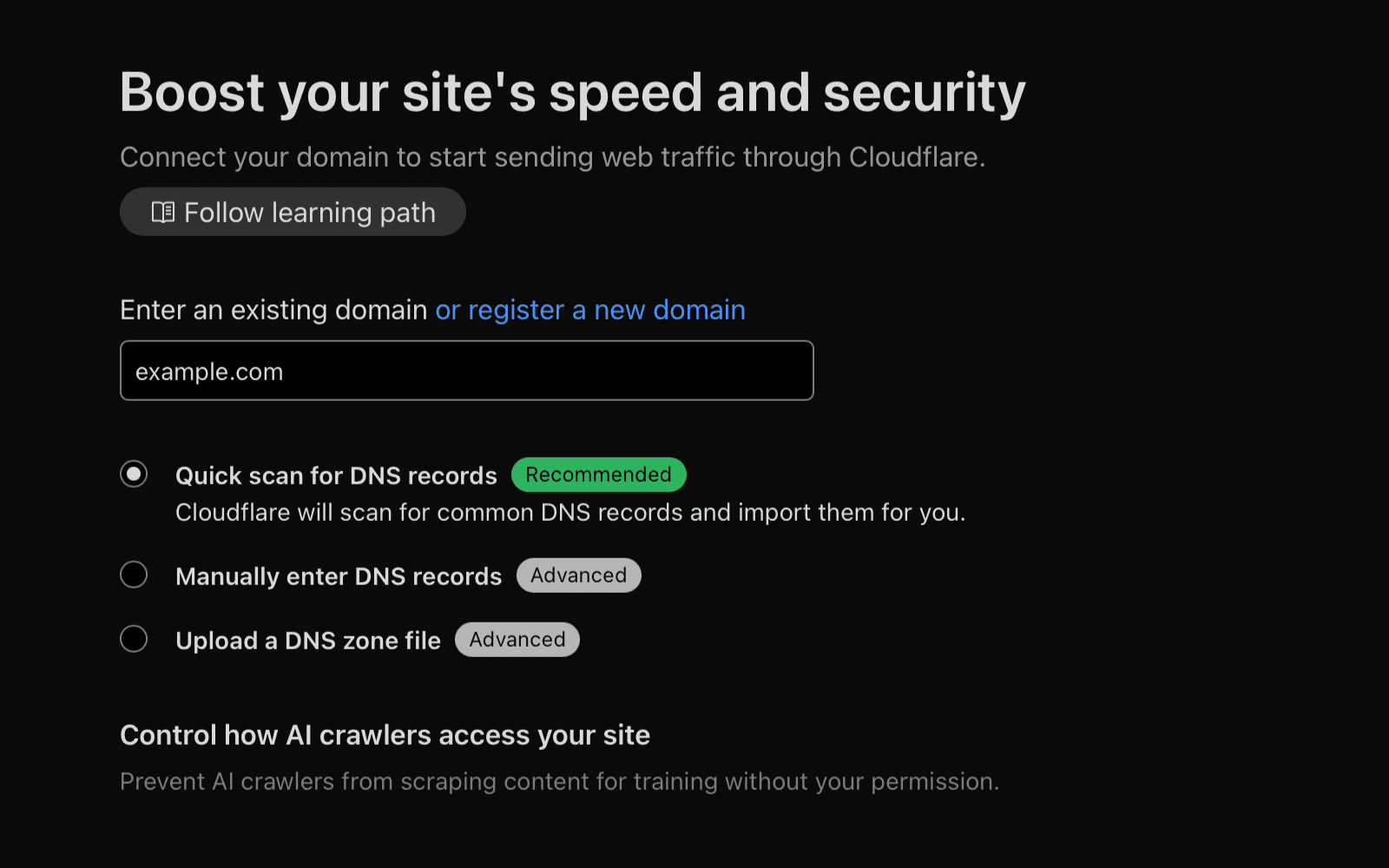
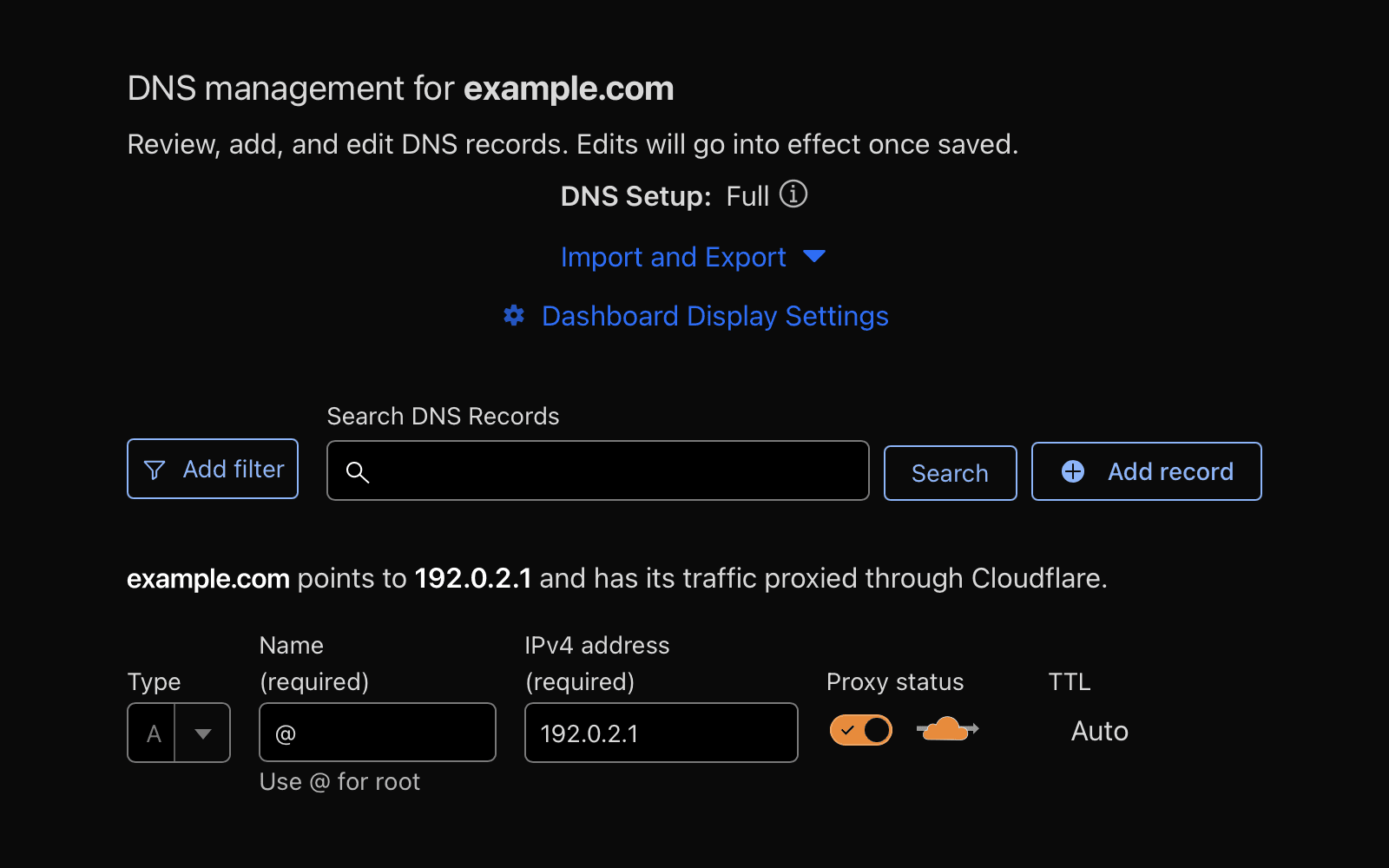
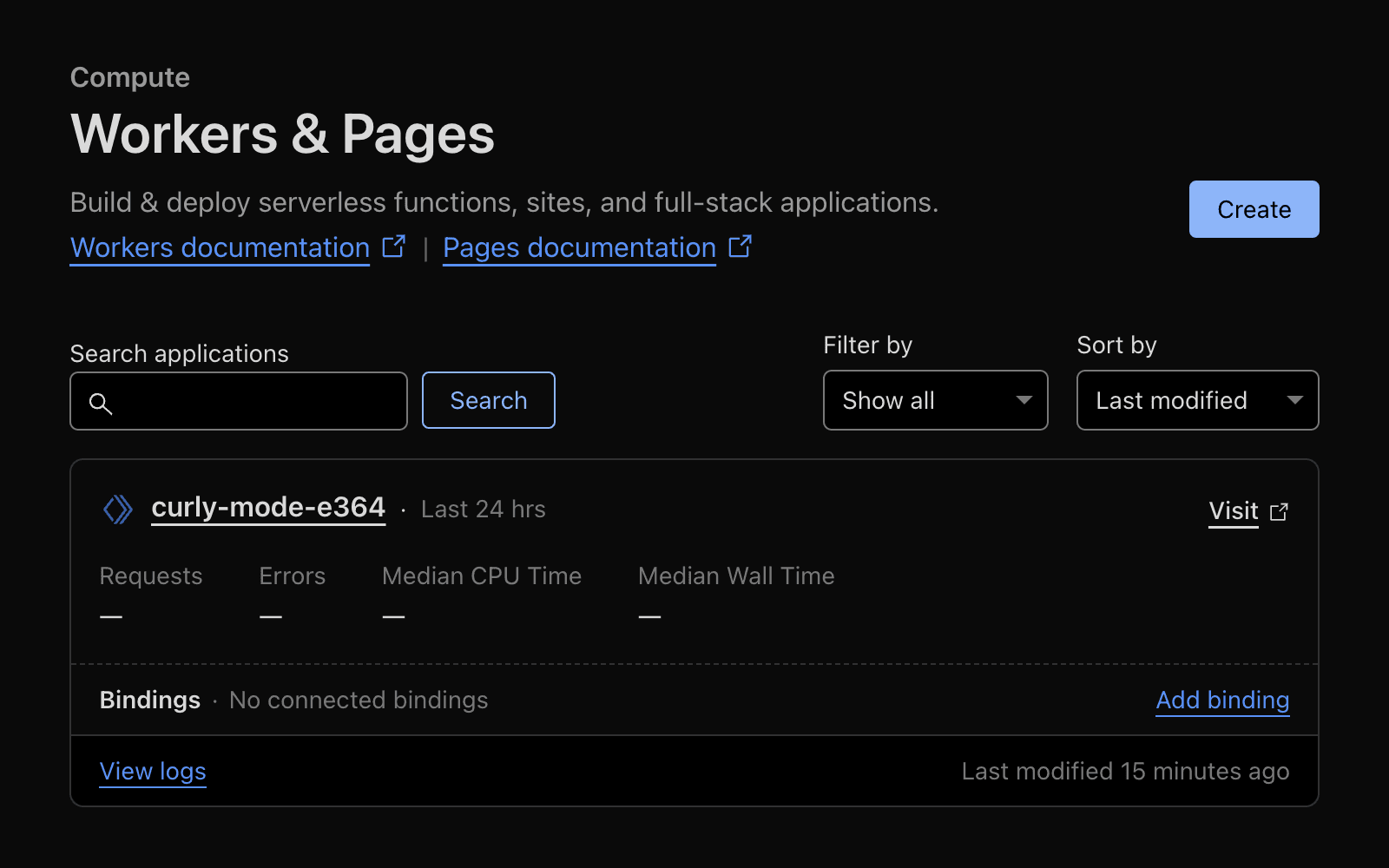
To set up reverse proxying, first open your Framer project and go to Site Settings → Domains. Add a free Framer subdomain (e.g., example.framer.website). Then, set a canonical URL in the Domains section by entering your custom domain (e.g., example.com) in the 'Advanced' input and publish your site. In Cloudflare, add your custom domain, and in DNS settings, point the root (@) or a subdomain to a dummy A record like 192.0.2.1. Next, create a Cloudflare Worker, assign a route (e.g., example.com/*), and use the provided Worker code to forward requests to your Framer subdomain. Make sure your Worker is assigned to the correct route and verify traffic is routed through Cloudflare.
Who should use reverse proxying with Framer, and on which plans is it available?
Reverse proxying is recommended only for users with specific infrastructure or policy needs, such as integration with internal infrastructure, compliance with advanced logging or regulatory requirements, or control over CDN, caching, or geographic traffic management. Framer already handles many of these capabilities natively. Reverse proxying is available on Scale and Enterprise plans.
What are some important steps to verify my Cloudflare reverse proxy setup for a Framer site?
To verify your setup, ensure your Cloudflare Worker is assigned to the correct domain route, wait a few minutes for changes to propagate, and use developer tools or an HTTP header inspector to confirm that traffic is routed through Cloudflare. If you encounter issues, you can contact Framer’s support team through their contact page.
Updated