Adding custom fonts
Learn how to upload and use custom fonts in Framer when the typeface you need isn’t available in the font picker.
Framer includes a wide range of built-in fonts and provides access to Google Fonts and Fontshare. If your preferred typeface isn’t available, you can upload custom font files and use them throughout your project.
Upload and use a custom font
Follow these steps to upload a custom font to your project:
Add a text layer to your project.
Select the text layer.
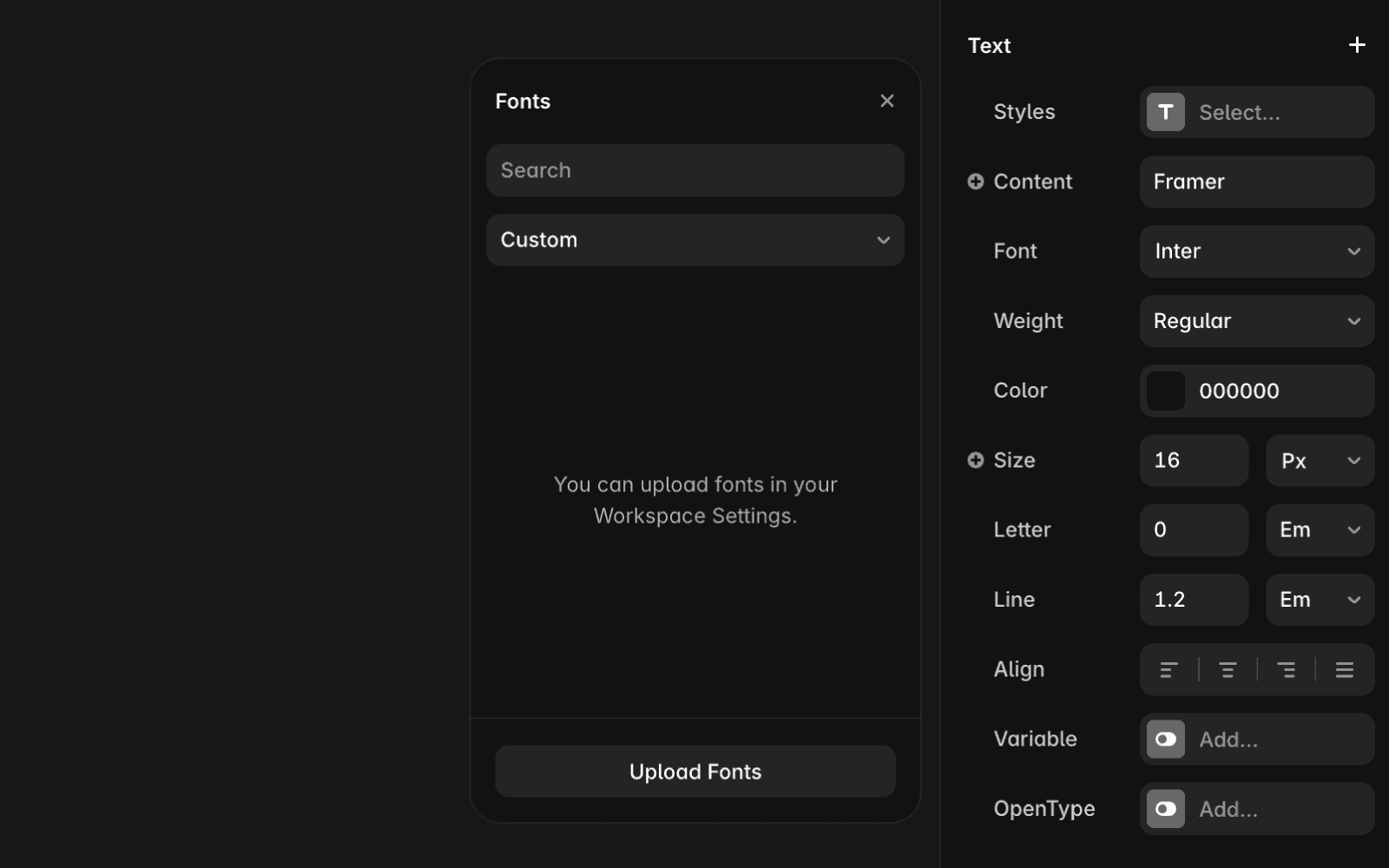
In the right panel, open the font picker.
Go to the Custom tab.
Click Upload Fonts.
Select the font file from your computer.
After the upload is complete, select the font from the Custom tab.
The uploaded font can be applied to any text layer in your project.
Import custom fonts from Figma
When importing designs from Figma, custom fonts may be replaced with Framer’s default font if the original font is not available in Framer.
To restore the correct font:
Upload the custom font to your Framer project.
Select the imported text layers.
Reapply the uploaded font using the font picker.
Once the font is uploaded, it can be used across all compatible text layers in the project.
Font licensing and file formats
Before uploading a custom font, make sure you have the appropriate license to use it on your website.
For the best performance, use the .woff2 file format whenever possible. WOFF2 files are optimized for web delivery and typically load faster than other font formats.
FAQ
Which font formats should I use?
For the best performance, use .woff2 files. They are optimized for the web and generally provide faster loading times.
Why did my Figma text change fonts after importing?
This usually happens when the original custom font is not available in Framer. Upload the font to your project and reapply it to the affected text layers.
Can I use my uploaded font across multiple text layers?
Yes. After a font is uploaded, it appears in the Custom tab of the font picker and can be applied to any compatible text layer in the project.
Updated
