Adding videos

Learn how to add, embed, and customize videos in your Framer projects.

Videos can help showcase products, explain concepts, and create more engaging experiences. Framer supports uploaded videos, hosted MP4 files, and embedded content from YouTube and Vimeo.

Add a video

To add a video to your site:

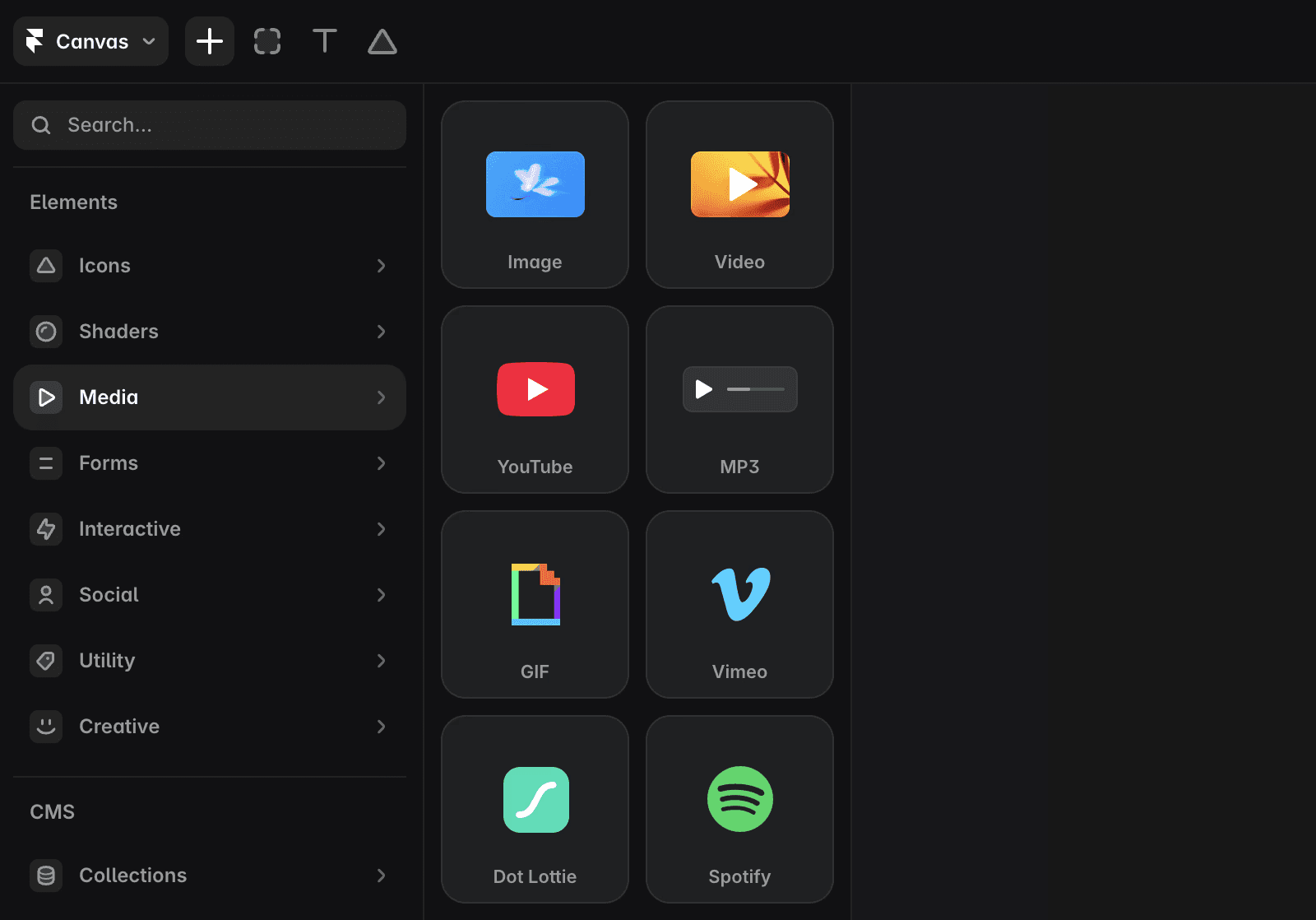
  1. Click Insert.

  2. Open the Media section.

  3. Drag a video component onto the Canvas.

  4. Choose one of the following options:

    • Video for uploaded or hosted video files

    • YouTube for YouTube videos

    • Vimeo for Vimeo videos

Screenshot of the “Media” panel in the “Insert” menu that shows all the different Iimage and video components.

Embed videos from YouTube or Vimeo

To embed a YouTube or Vimeo video:

  1. Add a YouTube or Vimeo component to the Canvas.

  2. Paste the video URL into the component settings.

The video will be embedded directly on the page.
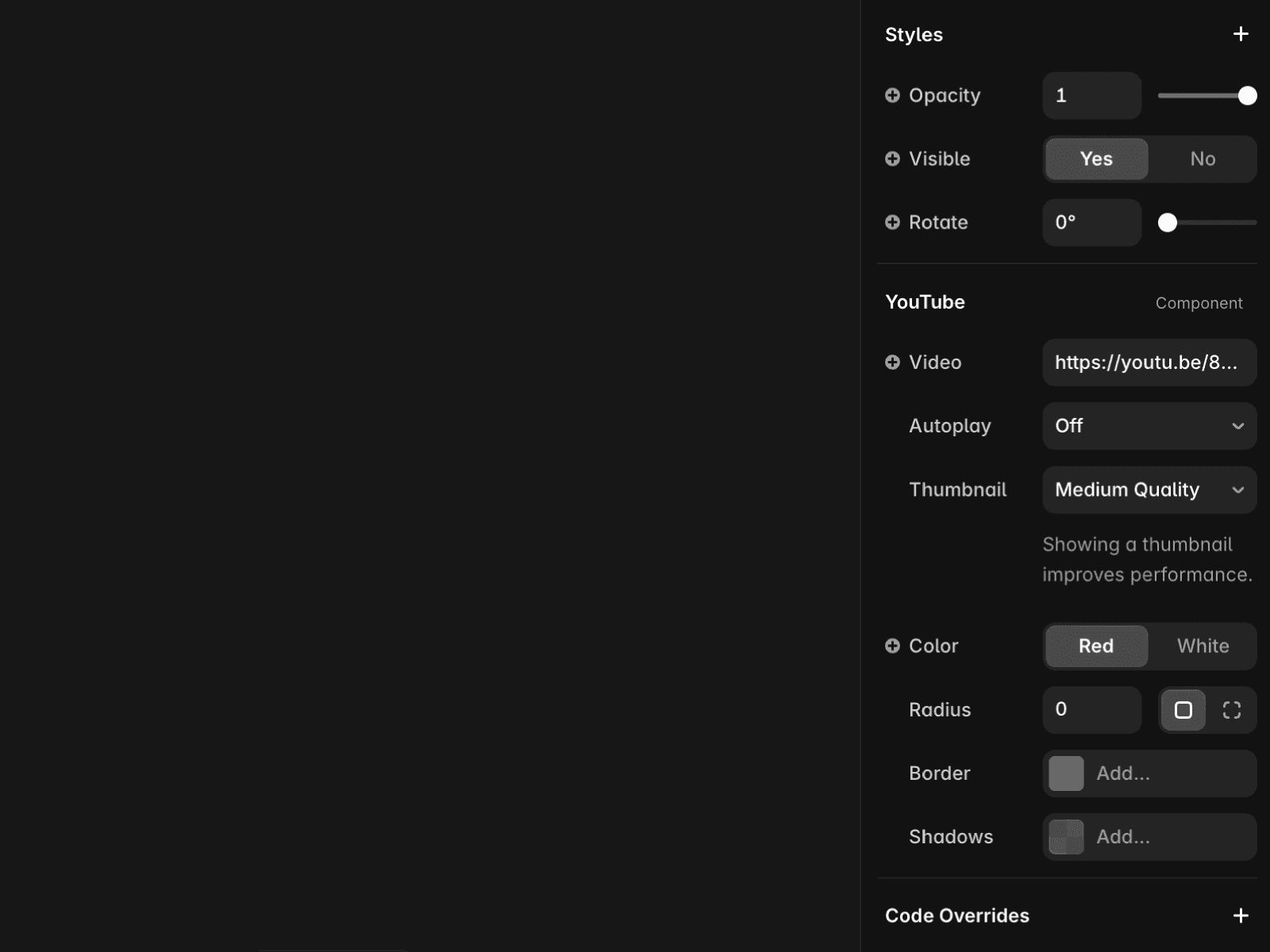
Screenshot of the right menu that show the different options of the Youtube component inside Framer.

Customize video settings

When using the Video component, you can adjust several playback and appearance settings, such as autoplay, poster images or border radius.

These settings can be configured in the right panel after selecting the video component.

Autoplay videos

Most modern browsers require autoplaying videos to be muted by default. If a video includes audio, playback should typically begin after a user interaction, such as clicking a button.

If you want videos to start automatically as visitors scroll through a page, refer to the guide on playing videos when they come into view.

Improve video accessibility

If a video does not contain an audio track, provide a short text description below the video that explains what it shows.

Text descriptions help visitors understand the content and improve accessibility for users who rely on assistive technologies.

Videos can help showcase products, explain concepts, and create more engaging experiences. Framer supports uploaded videos, hosted MP4 files, and embedded content from YouTube and Vimeo.

Add a video

To add a video to your site:

  1. Click Insert.

  2. Open the Media section.

  3. Drag a video component onto the Canvas.

  4. Choose one of the following options:

    • Video for uploaded or hosted video files

    • YouTube for YouTube videos

    • Vimeo for Vimeo videos

Screenshot of the “Media” panel in the “Insert” menu that shows all the different Iimage and video components.

Embed videos from YouTube or Vimeo

To embed a YouTube or Vimeo video:

  1. Add a YouTube or Vimeo component to the Canvas.

  2. Paste the video URL into the component settings.

The video will be embedded directly on the page.

Screenshot of the right menu that show the different options of the Youtube component inside Framer.

Customize video settings

When using the Video component, you can adjust several playback and appearance settings, such as autoplay, poster images or border radius.

These settings can be configured in the right panel after selecting the video component.

Autoplay videos

Most modern browsers require autoplaying videos to be muted by default. If a video includes audio, playback should typically begin after a user interaction, such as clicking a button.

If you want videos to start automatically as visitors scroll through a page, refer to the guide on playing videos when they come into view.

Improve video accessibility

If a video does not contain an audio track, provide a short text description below the video that explains what it shows.

Text descriptions help visitors understand the content and improve accessibility for users who rely on assistive technologies.

FAQ

  • Can I upload my own video files?

    Yes. Use the Video component to upload local video files or use hosted MP4 files.

  • Why isn’t my autoplay video playing automatically?

    Most browsers only allow autoplay when videos are muted. If your video includes audio, playback may require user interaction.

  • Does Framer optimize uploaded videos?

    Framer optimizes video loading, but it does not optimize or compress the video content itself. For the best performance, upload web-optimized video files.

Updated