How to create flexible CMS detail pages
In this guide, we explain how to use conditionals to create flexible CMS detail pages in Framer, enabling dynamic layouts that adapt to your content.
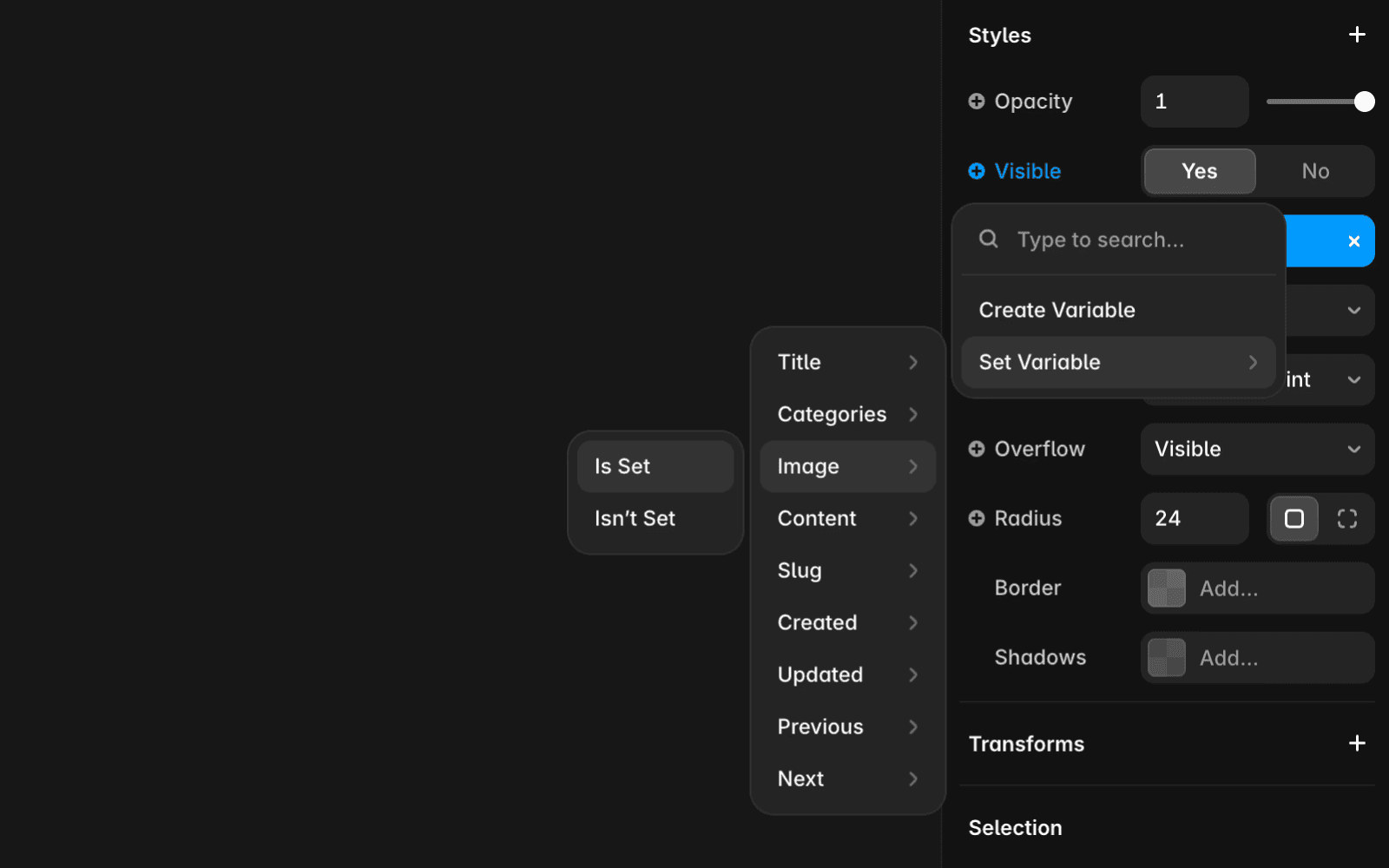
Controlling visibility using conditional logic “Is Set”
The simplest way to control visibility is with the “Is Set” condition. This checks whether an element (e.g., an image) is added to the page. See New Conditionals and Transforms.
If an image is added, it is displayed.
If not, it remains hidden.
This approach requires no additional CMS fields and is ideal for straightforward use cases.
Other conditional options
Conditional logic also supports text-based criteria, such as:
Equals
Doesn’t equal
Starts with
Doesn’t start with
Ends with
Doesn’t end with
Contains
Doesn’t contain
These conditions let you check for specific text matches to control element visibility.
Controlling visibility using option fields
Setting up option fields
To add option fields in your CMS collection:
Navigate to the CMS view.
Click Edit Fields.
Click the plus icon to add a new field.
Select Option from the dropdown menu.
Create a list of options like “Show 1 Image” or “Show 3 Images” to customize visibility for each collection item.
Applying option field logic to designs
Select the element whose visibility you want to control.
Click the plus icon next to the Visible option.
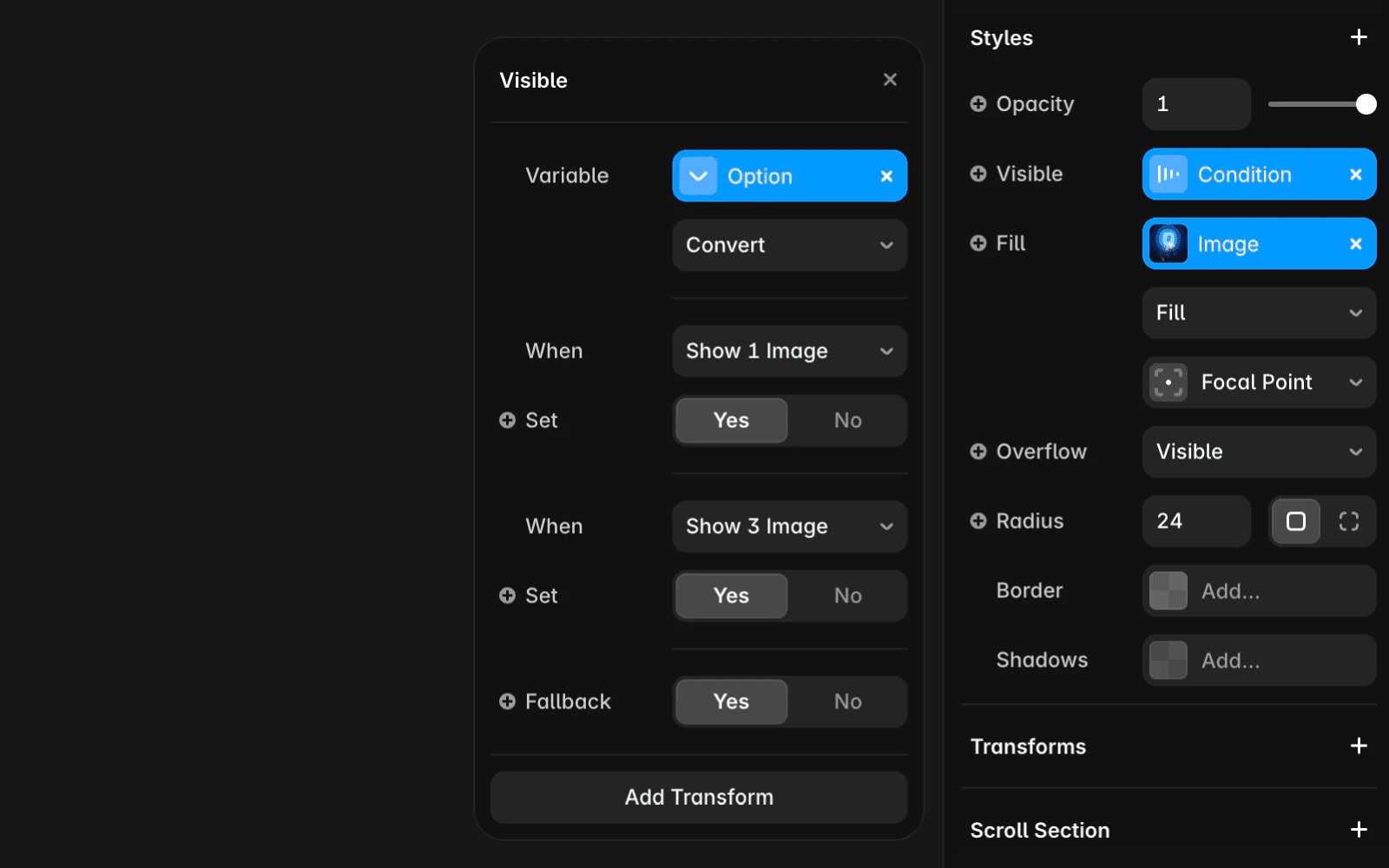
Select Set Variable and choose the Option condition.
Key options include:
Equal: Shows the element if it matches the selected option.
Doesn’t equal: Hides the element if it doesn’t match the option.
Convert: Enables control for multiple options and fallback behavior for unmatched cases.
Example: dynamic layouts with component variants
If you have a component with two variants—one showing three images and the other showing one—you can use the Convert option to select which layout to display for each option in the dropdown.
Using toggle fields for simple logic
For basic Yes/No conditions, use Toggle fields to control element visibility, such as showing or hiding an image.
Leveraging conditionals and transforms
Conditionals and transforms give you advanced control over CMS detail pages. You can apply conditions to any element with a plus icon, creating dynamic layouts tailored to your content. For more advanced techniques, watch this guide.
If you're still experiencing issues, please reach out to us through our contact page for further help.
FAQ
How can I control the visibility of elements on CMS detail pages in Framer?
You can control visibility using conditional logic such as the 'Is Set' condition, which checks whether an element (like an image) is added to the page. If the element is added, it is displayed; if not, it remains hidden. This method requires no additional CMS fields and is ideal for straightforward use cases.
What types of conditional logic are available for dynamic layouts in Framer CMS?
Framer supports several conditional options for controlling element visibility, including text-based criteria like Equals, Doesn’t equal, Starts with, Doesn’t start with, Ends with, Doesn’t end with, Contains, and Doesn’t contain. These allow you to check for specific text matches to create dynamic layouts tailored to your content.
How do I use option and toggle fields to customize CMS detail pages in Framer?
To use option fields, add them in your CMS collection by navigating to the CMS view, clicking Edit Fields, and selecting Option from the dropdown. You can then create a list of options (e.g., 'Show 1 Image', 'Show 3 Images') and apply logic to control visibility for each collection item. For simple Yes/No conditions, use Toggle fields to show or hide elements like images. These tools enable you to create flexible, dynamic layouts based on your CMS data.
Updated
