How to create flexible CMS detail pages
In this guide, we explain how to use conditionals to create flexible CMS detail pages in Framer, enabling dynamic layouts that adapt to your content.
FAQ
How can I control the visibility of elements on CMS detail pages in Framer?
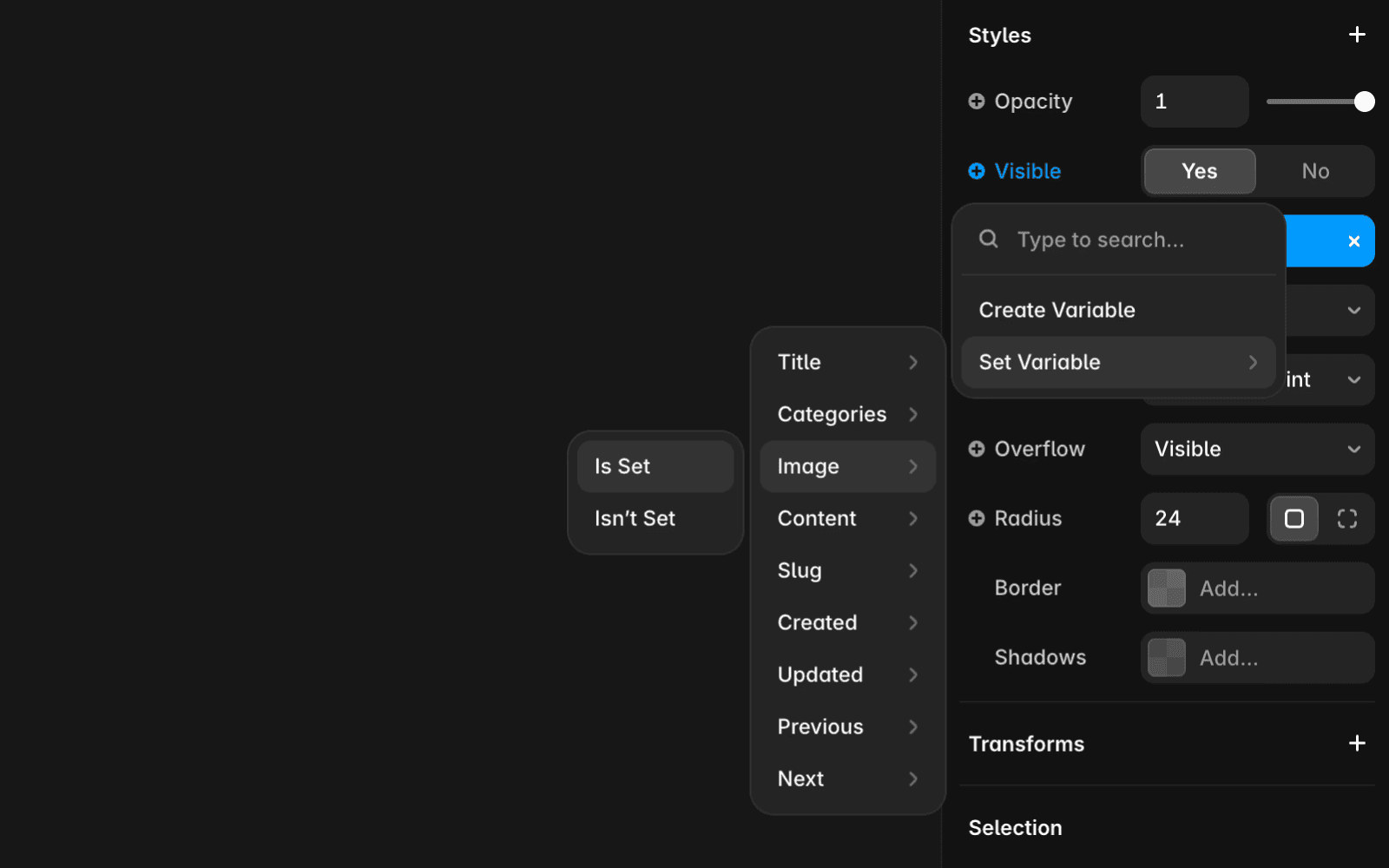
You can control visibility using conditional logic such as the 'Is Set' condition, which checks whether an element (like an image) is added to the page. If the element is added, it is displayed; if not, it remains hidden. This method requires no additional CMS fields and is ideal for straightforward use cases.
What types of conditional logic are available for dynamic layouts in Framer CMS?
Framer supports several conditional options for controlling element visibility, including text-based criteria like Equals, Doesn’t equal, Starts with, Doesn’t start with, Ends with, Doesn’t end with, Contains, and Doesn’t contain. These allow you to check for specific text matches to create dynamic layouts tailored to your content.
How do I use option and toggle fields to customize CMS detail pages in Framer?
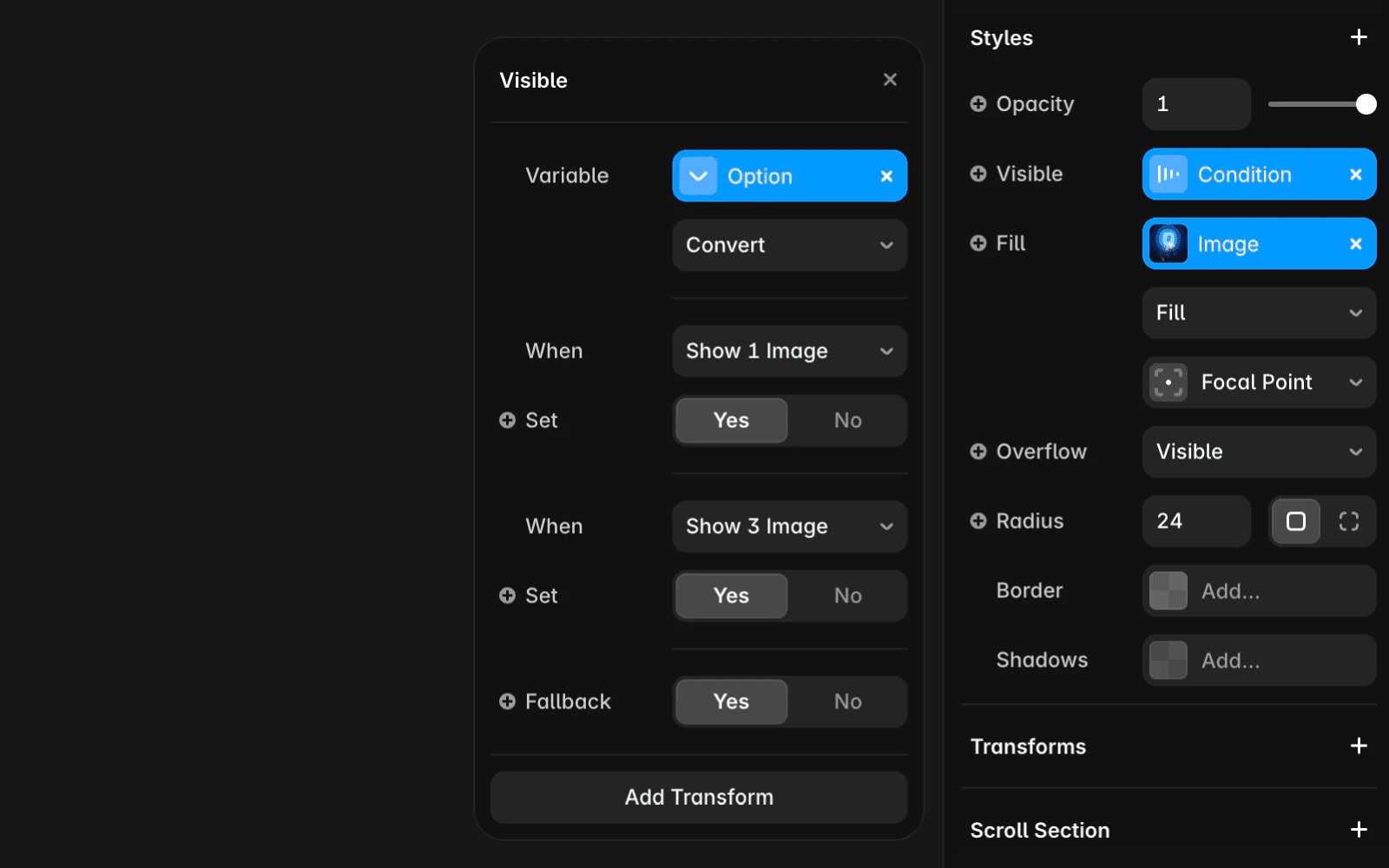
To use option fields, add them in your CMS collection by navigating to the CMS view, clicking Edit Fields, and selecting Option from the dropdown. You can then create a list of options (e.g., 'Show 1 Image', 'Show 3 Images') and apply logic to control visibility for each collection item. For simple Yes/No conditions, use Toggle fields to show or hide elements like images. These tools enable you to create flexible, dynamic layouts based on your CMS data.
Updated