Transfer a project to another user
Learn how to transfer ownership of a Framer project to another user.
If you’ve built a site for a client or collaborator, you can transfer ownership using Project Transfers. The site remains live during the transfer, and any connected custom domain stays intact.
Before you transfer a project
Project Transfers allow you to move ownership of a project to another Framer user.
During the transfer:
The site remains online.
Connected custom domains continue working.
The recipient becomes the new project owner after accepting the transfer.
Any active site subscription is canceled when the transfer is accepted.
The unused portion of the subscription is credited to your account.
Transfer a project
To transfer a project:
Open the project you want to transfer.
Click the Framer logo in the top navigation bar.
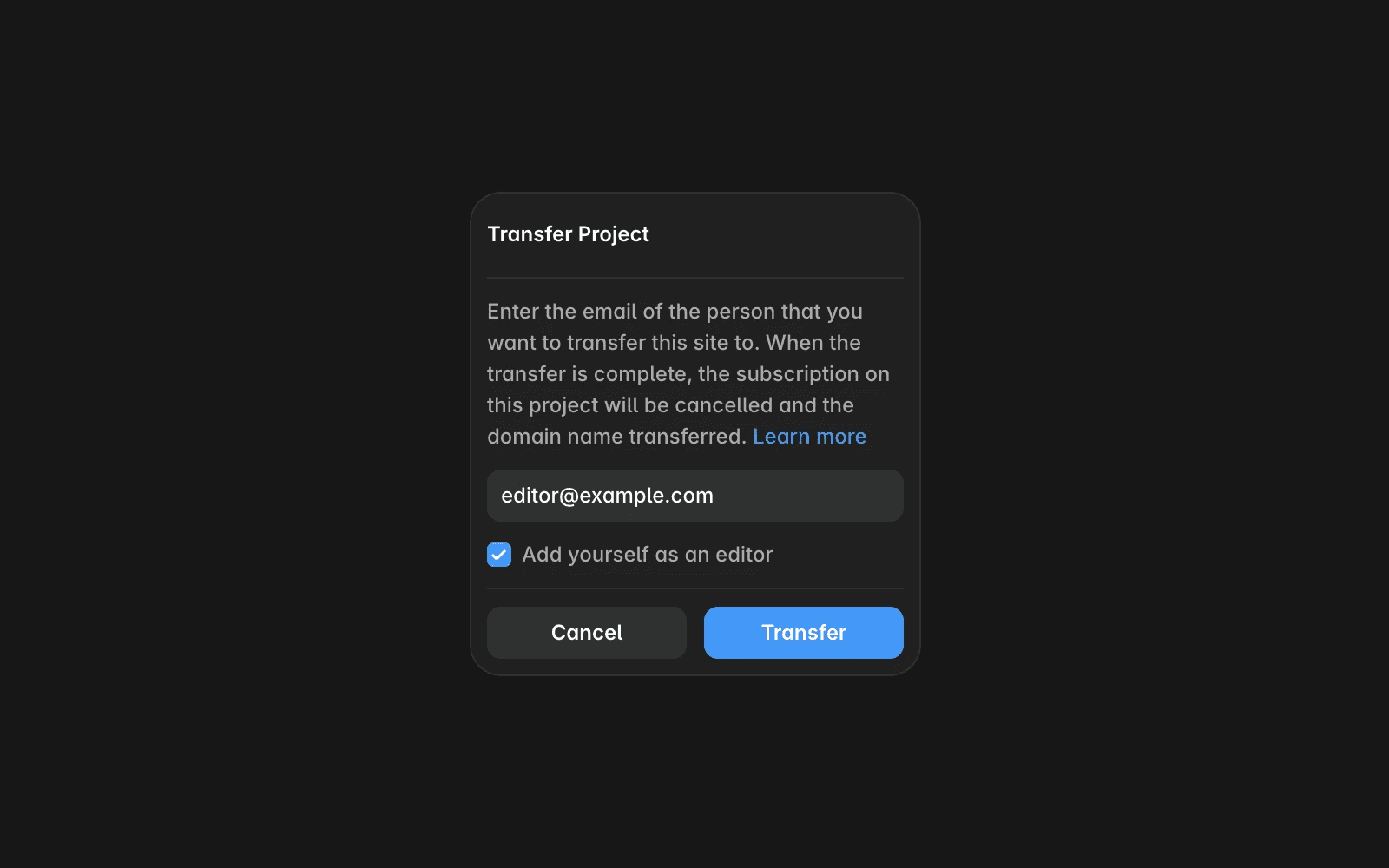
Select File → Transfer Project.
Enter the email address of the recipient.
Choose whether you want to remain an editor on the project.
Click Transfer.
The recipient will receive an email invitation to accept the transfer.
Accept a project transfer
To accept a transferred project:
Open the transfer invitation email.
Click the transfer link.
Sign in to your Framer account, or create one if needed.
Click Confirm Transfer.
Once accepted, the project is added to your workspace.
If the project uses paid features, such as a custom domain or Localization, you'll be prompted to select and activate a Site plan.
Who can transfer projects?
You can transfer a project if you are:
The project owner.
A workspace admin.
Other project members cannot initiate project transfers.
What happens to subscriptions?
When the recipient accepts the transfer:
The existing Site plan is canceled automatically.
Any unused subscription time is converted into account credit for the original owner.
The new owner is responsible for selecting and paying for any required Site plan.
Affiliate and Expert revenue
Members of the Framer Affiliate Program can earn revenue when transferred projects are upgraded to paid Site plans.
If a client upgrades after receiving a transferred project, affiliates may earn a commission based on the terms of the Affiliate Program.
Verified Experts may also have project transfer revenue count toward Expert program requirements and benefits.
FAQ
Will my site go offline during the transfer?
No. The site remains online throughout the transfer process, including any connected custom domains.
What happens to the existing subscription?
The subscription is canceled when the transfer is accepted, and any unused value is credited to the original owner's account.
Can any project member transfer a project?
No. Only the project owner or a workspace admin can initiate a project transfer.
Updated
