Using on-page editing
Learn how to edit content directly from your live website, collaborate with your team, and create new CMS pages.
On-page editing allows site owners and collaborators to update content directly from a published website. You can edit text, images, component properties, and CMS content without opening the Framer canvas.
Who can use on-page editing?
Site owners and collaborators with Content permissions can use on-page editing by opening the published site in their browser.
To give someone access, invite them to the project and assign the appropriate permissions.
When does the Edit button appear?
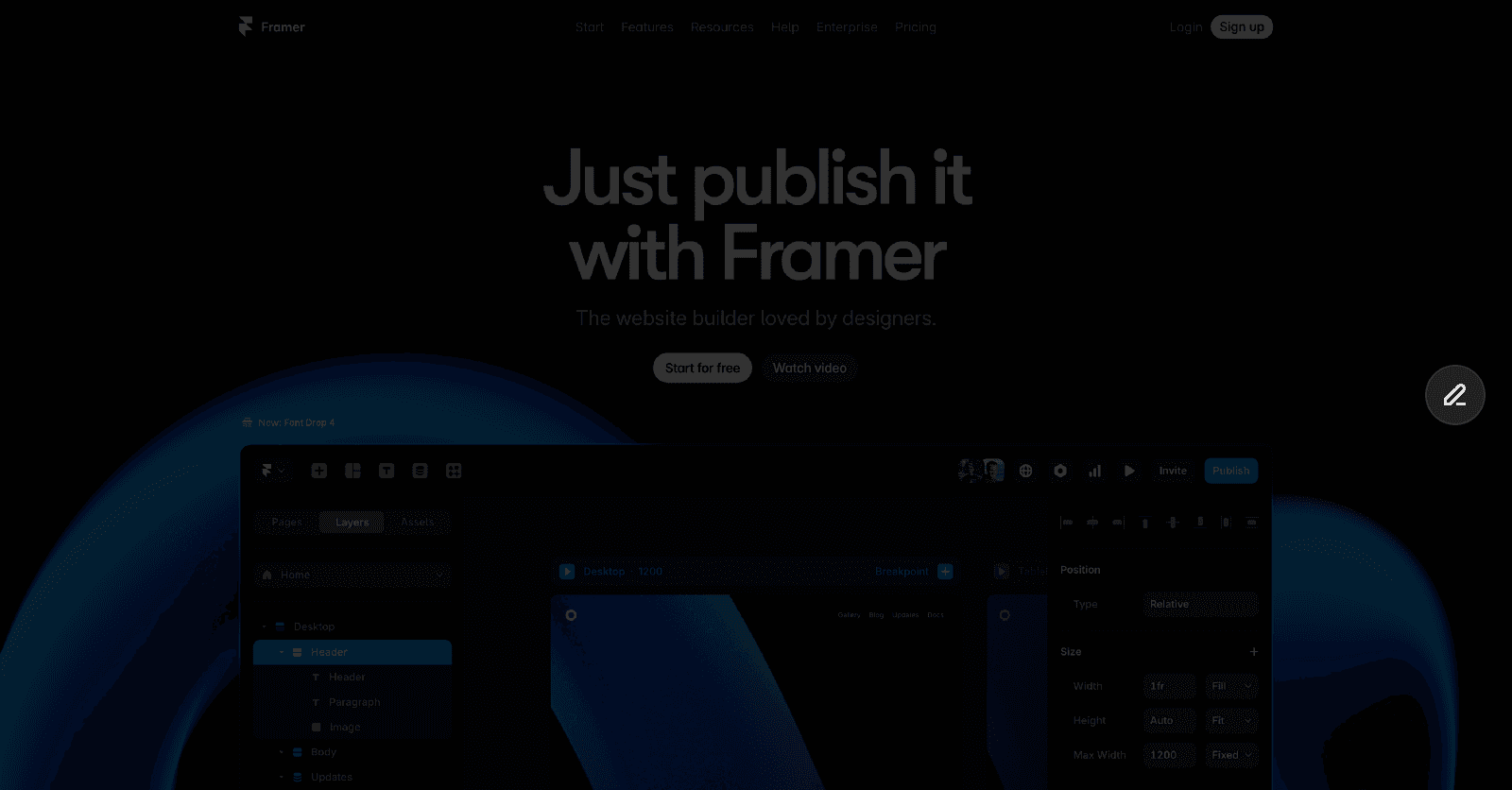
After publishing your site, an Edit button appears on the right side of the page.
The button's visibility depends on how the site is accessed:
Site type | Who can see the Edit button |
|---|---|
Custom domain | Site owners and collaborators only |
Staging link | Everyone can see the button, but only users with the appropriate permissions can make edits |
Visitors without project access cannot make changes to your site.
What can you edit?
Most page content can be edited directly on the live site.
Editable content includes text and rich text, images, component properties, content on static pages and CMS content.
When you enter editing mode, editable elements are highlighted. Hover over an element and click it to begin editing.
Some parts of a site are not currently supported by on-page editing. These include layout templates and overlay content.
Add new CMS pages
You can create new pages through on-page editing if they are powered by the CMS.
To add a new CMS page:
Open an existing CMS detail page, such as a blog post, case study, or job listing.
Click Edit.
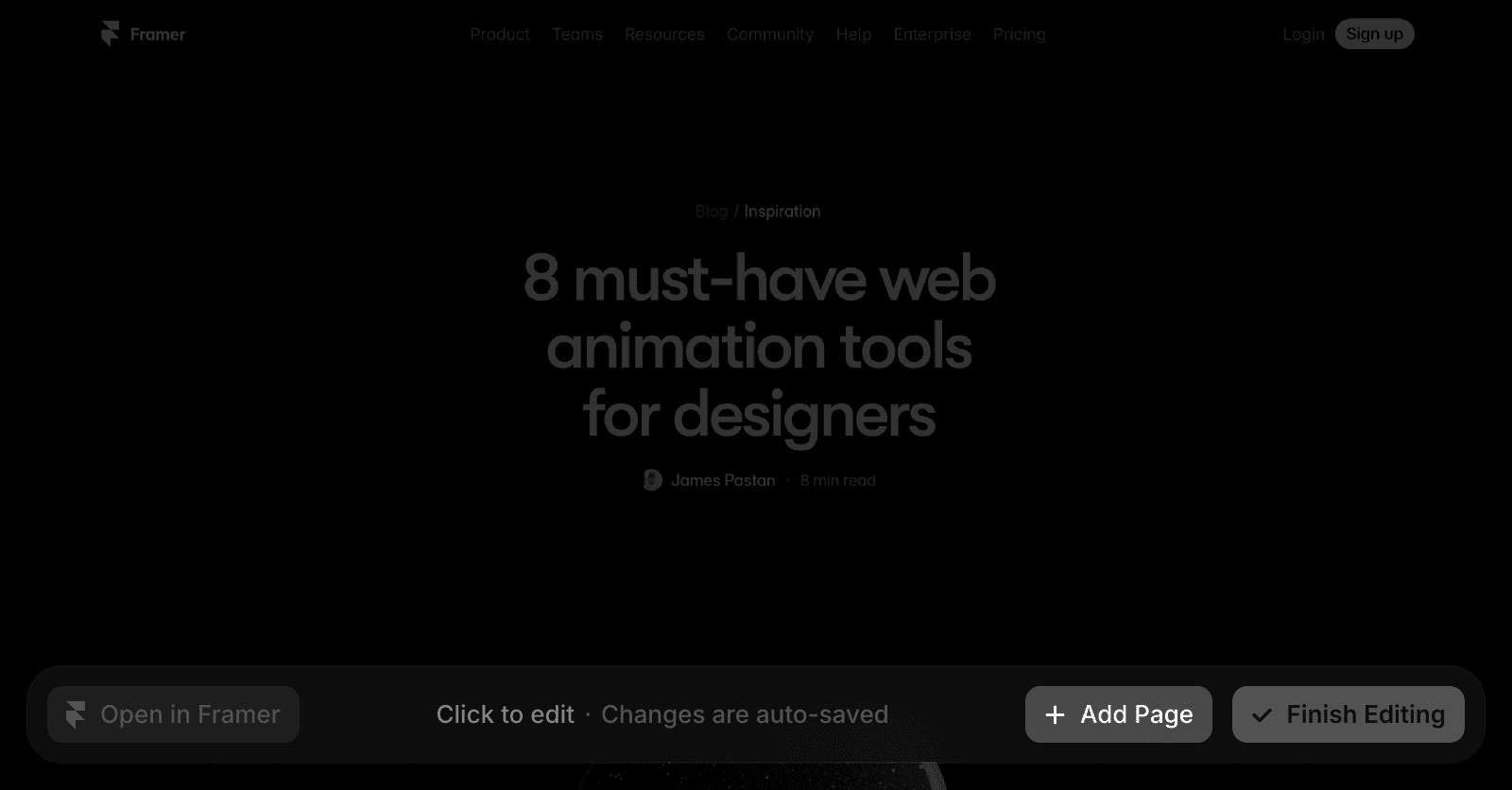
Select Add Page in the editor bar.
Create the new CMS page and add your content.
Edit fields that are not visible on the page
Some CMS fields, such as SEO descriptions or featured toggles, may not appear directly on the page.
To edit all available fields:
Enter editing mode.
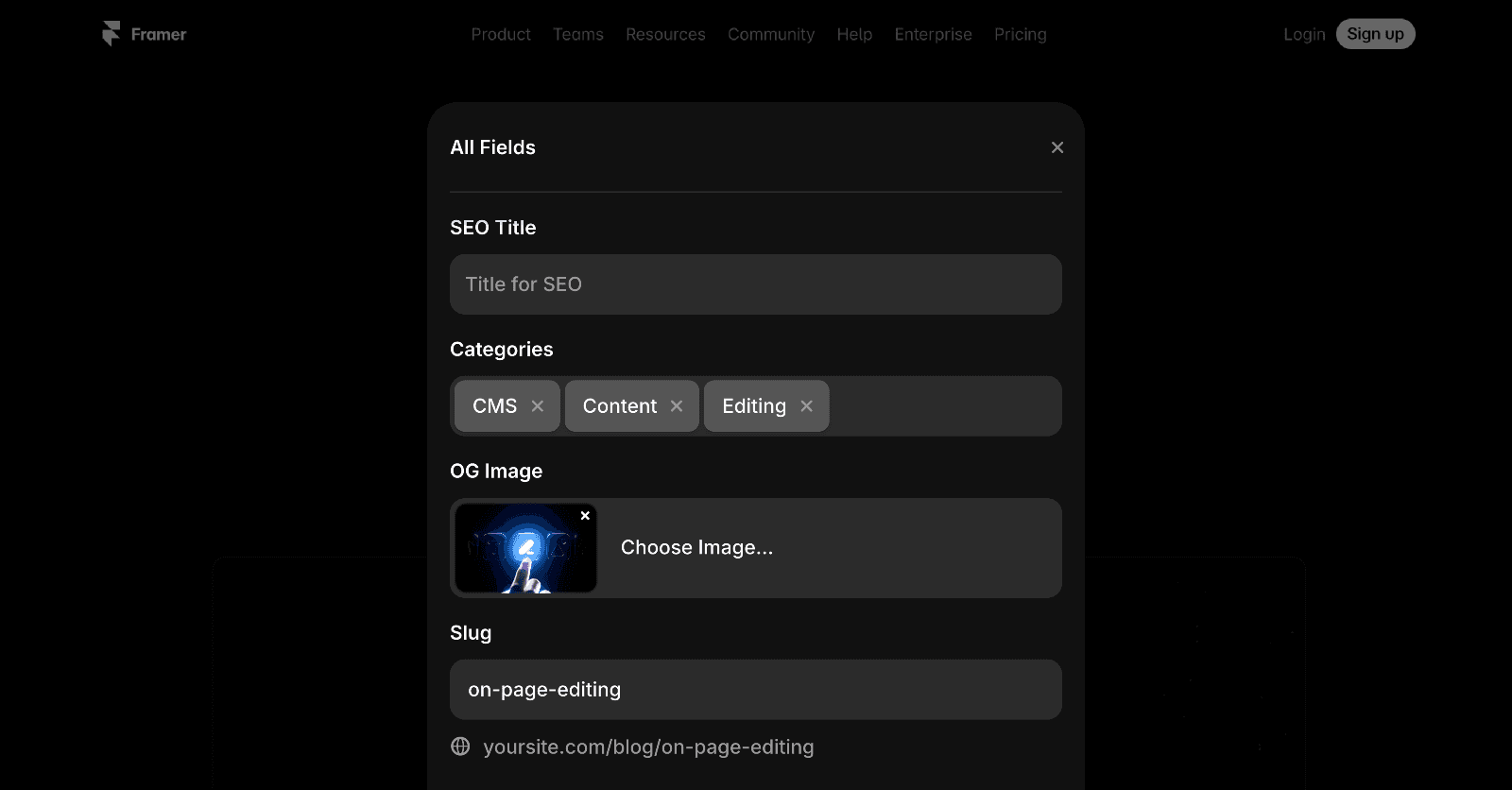
Click Show All Fields in the editor Bar.
Update the fields in the modal that appears.
Save your changes.
This gives you access to every field associated with the CMS item.
What happens after editing?
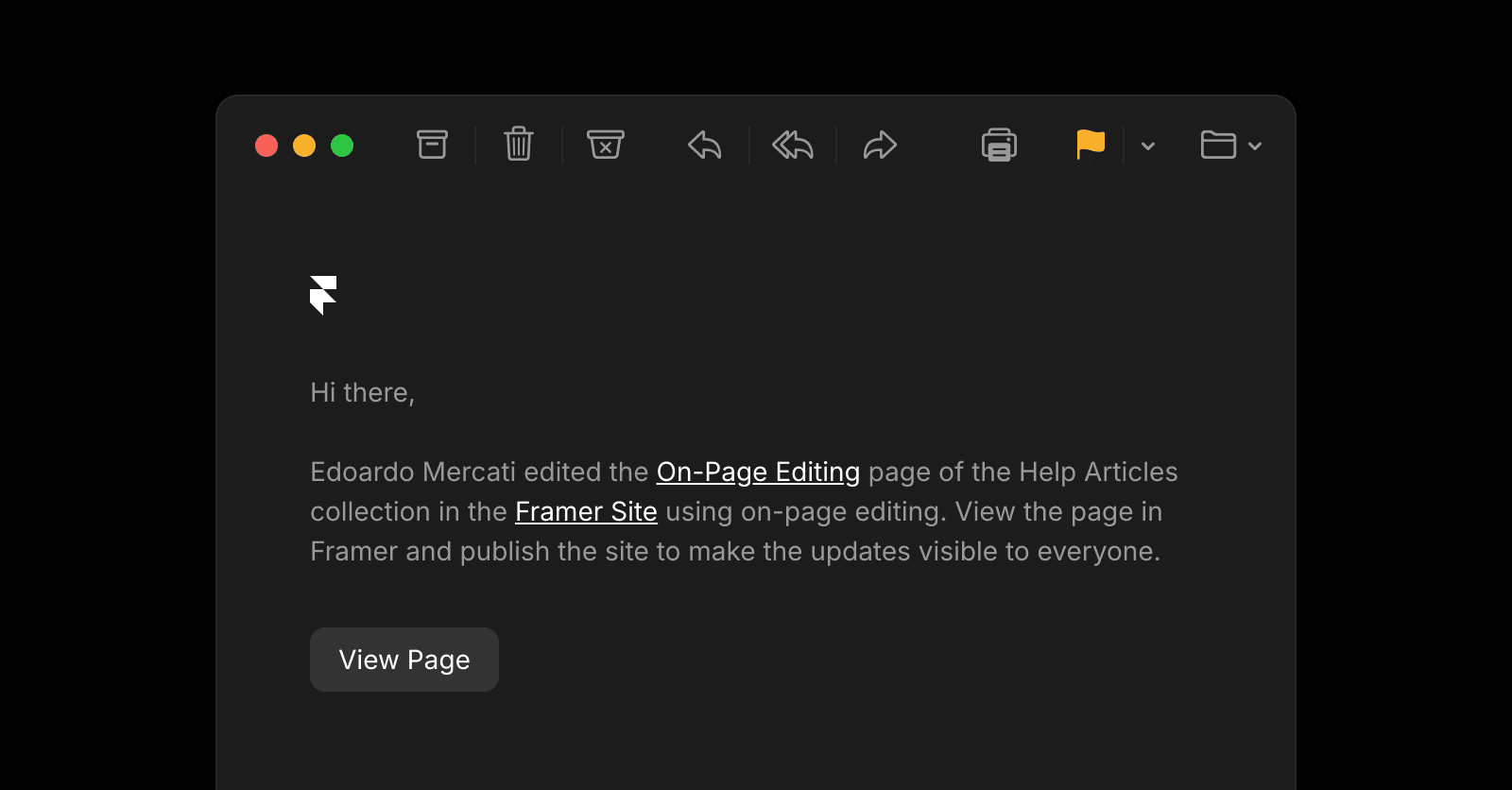
When you click Finish Editing, an email notification is sent to collaborators with publishing permissions.
After a collaborator reviews and publishes the site, your changes become live and visible to visitors.
Troubleshoot a missing Edit button
If you do not see the Edit button, try the following:
Republish the site. The site may not have been published recently.
Check your permissions. If you are viewing a custom domain, make sure you have access to the project.
Verify the canonical URL. If the site uses reverse proxy functionality, the canonical URL must be configured correctly.
If you have tried these steps and still cannot see the Edit button, contact Support for further assistance.
On-page editing allows site owners and collaborators to update content directly from a published website. You can edit text, images, component properties, and CMS content without opening the Framer canvas.
Who can use on-page editing?
Site owners and collaborators with Content permissions can use on-page editing by opening the published site in their browser.
To give someone access, invite them to the project and assign the appropriate permissions.
When does the Edit button appear?
After publishing your site, an Edit button appears on the right side of the page.
The button's visibility depends on how the site is accessed:
Site type | Who can see the Edit button |
|---|---|
Custom domain | Site owners and collaborators only |
Staging link | Everyone can see the button, but only users with the appropriate permissions can make edits |
Visitors without project access cannot make changes to your site.
What can you edit?
Most page content can be edited directly on the live site.
Editable content includes text and rich text, images, component properties, content on static pages and CMS content.
When you enter editing mode, editable elements are highlighted. Hover over an element and click it to begin editing.
Some parts of a site are not currently supported by on-page editing. These include layout templates and overlay content.
Add new CMS pages
You can create new pages through on-page editing if they are powered by the CMS.
To add a new CMS page:
Open an existing CMS detail page, such as a blog post, case study, or job listing.
Click Edit.
Select Add Page in the editor bar.
Create the new CMS page and add your content.
Edit fields that are not visible on the page
Some CMS fields, such as SEO descriptions or featured toggles, may not appear directly on the page.
To edit all available fields:
Enter editing mode.
Click Show All Fields in the editor Bar.
Update the fields in the modal that appears.
Save your changes.
This gives you access to every field associated with the CMS item.
What happens after editing?
When you click Finish Editing, an email notification is sent to collaborators with publishing permissions.
After a collaborator reviews and publishes the site, your changes become live and visible to visitors.
Troubleshoot a missing Edit button
If you do not see the Edit button, try the following:
Republish the site. The site may not have been published recently.
Check your permissions. If you are viewing a custom domain, make sure you have access to the project.
Verify the canonical URL. If the site uses reverse proxy functionality, the canonical URL must be configured correctly.
If you have tried these steps and still cannot see the Edit button, contact Support for further assistance.
FAQ
Why can’t I see the Edit button?
The site may need to be republished, you may not have access to the project, or the site's canonical URL may not be configured correctly when using reverse proxy functionality.
Can I create new pages with on-page editing?
Yes, but only for CMS-powered pages. You can create new CMS items directly from an existing CMS detail page.
Do changes go live immediately?
No. Changes must be reviewed and published by a collaborator with publishing permissions before they become visible on the live site.
Updated