How to publish a site in the Gallery
Learn how to submit a live Framer website to the Gallery and showcase your work with the Community.
The Gallery highlights real websites built and published with Framer. Submit your best work to inspire other creators and help showcase what’s possible with Framer.
Gallery and Marketplace submission requirements
The Gallery is only for live, production websites. If you’ve created a template, plugin, component, or any other remixable asset, submit it to the Marketplace instead, as the Gallery is designed to showcase finished websites that are actively serving a business, project, event, or personal brand.
What can be submitted to the Gallery
To be eligible for the Gallery, your site should meet the following requirements:
It is a live website that is publicly accessible.
It is built and published with Framer.
It represents a real business, project, portfolio, event, or similar use case.
It showcases thoughtful design and execution.
Custom code, integrations, and third-party tools are allowed, as long as Framer is the foundation of the site.
Submit your site
Once your site is ready, you can submit it to the Gallery through the Framer Community.
Navigate to the Gallery in the Framer Community.
Click Post in the top toolbar.
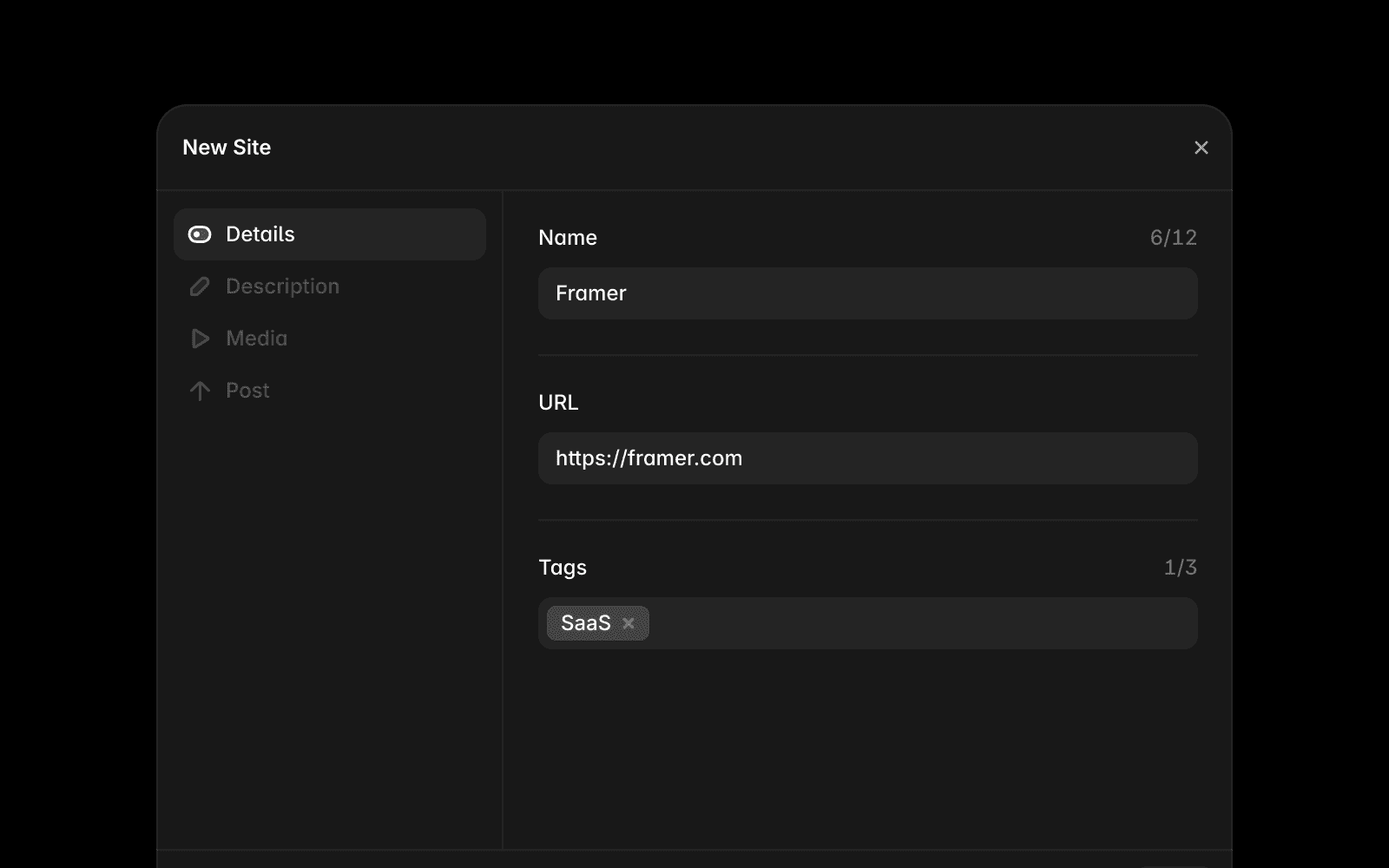
Fill in the required information:
Website name and description
Website URL
Screenshots or preview images
Tags
Optionally create a post for the Community feed.
Click Submit.
After you submit
After submitting your website, you can:
Edit the name, description, images, and other submission details at any time.
Continue updating and improving your website.
Reach other creators through the Gallery and the Community feed.
Submit additional websites that showcase your work with Framer.
Make your submission stand out
A few simple improvements can help increase your chances of being featured:
Use high-quality screenshots that clearly showcase your website.
Write a concise description that explains the purpose of the site.
Choose categories that accurately reflect your project.
Showcase polished interactions, responsiveness, and overall attention to detail.
Make sure the website is fully complete and publicly accessible before submitting.
The Gallery is curated to highlight exceptional examples of websites built with Framer, so taking the time to polish your submission can help it stand out.
FAQ
Can I submit a template to the Gallery?
No. The Gallery is only for live websites that are publicly accessible and actively in use. Templates, plugins, components, and other remixable assets should be submitted to the Marketplace instead.
When will my website appear in the Gallery?
Gallery submissions are published immediately after you submit them. Once submitted, your website becomes visible in the Gallery and can be discovered by other members of the Framer Community.
Can I update my website after submitting it?
Yes. You can continue updating and improving your website after submitting it to the Gallery. Any changes you publish to your Framer site will be reflected on the live website.
Updated
