How to publish a component
Learn how to publish a component in the Framer Community and start earning from your work.
Share your component with the Framer Community to reach a global audience. You keep 100% of your component revenue and gain visibility through the Community.
Before you publish
Make sure your component is ready before publishing. Components are published immediately, so it’s important to review everything carefully.
Test your component in different layouts and configurations.
Fix any bugs or unexpected behavior.
Create a live preview page that showcases your component.
Prepare high-quality screenshots that clearly show your component in use.
Review the name, byline, description, categories, and pricing information.
If you’d like, you can also review our component best practices to make sure your component is polished and ready for publication.
Publish your component
Once your component is ready, you can publish it in the Framer Community.
In Framer, open the Assets panel, right-click your component, and select Copy URL.
Open the Marketplace section in the Framer Community.
Click Post in the top toolbar, then select Component.
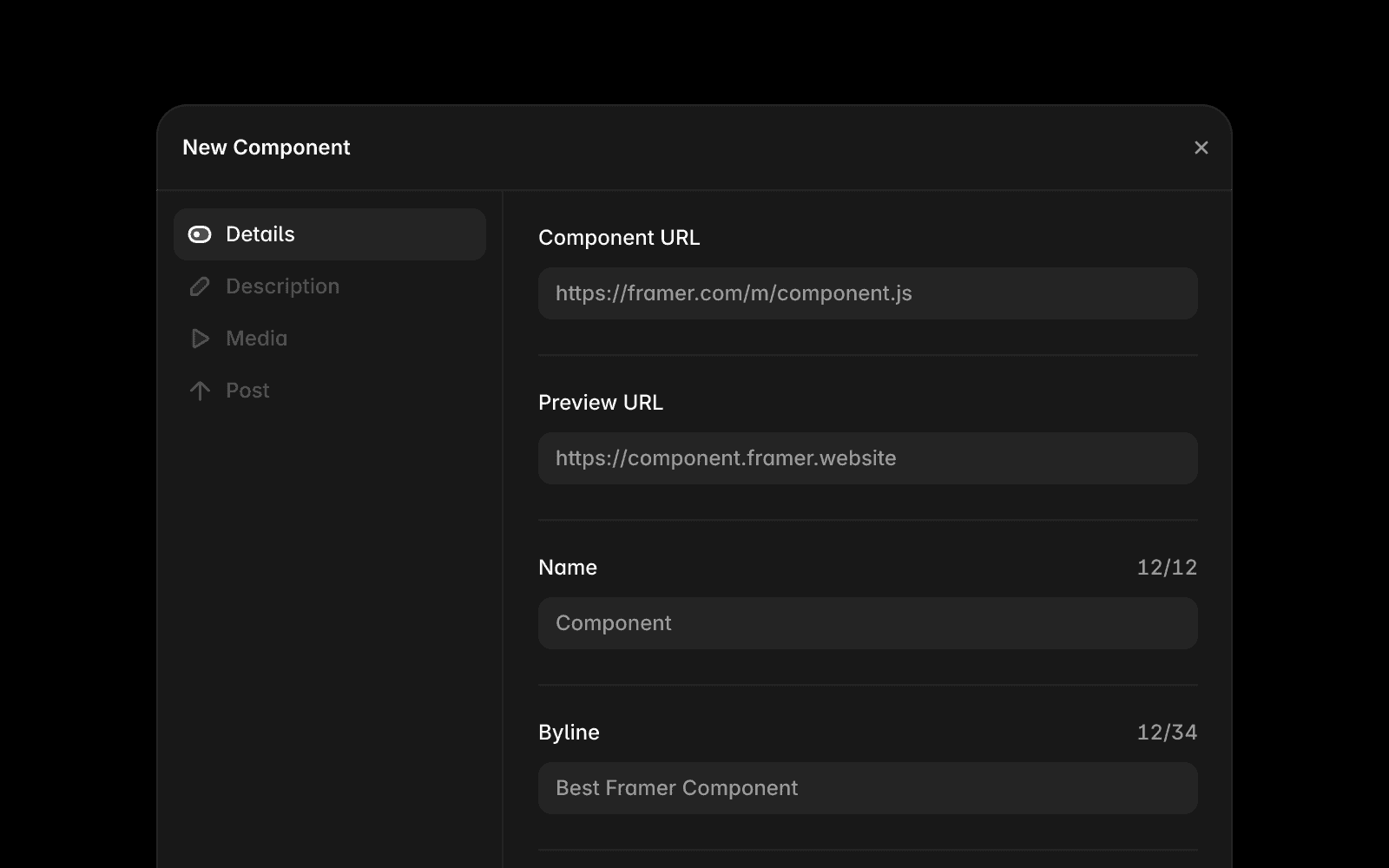
Fill in the required fields:
Component URL
Name, byline, and description
Images and categories
Pricing information, if the component is paid
Optionally create a post for the Community feed.
Click Submit.
Your component is published immediately and becomes available in the Community.
Publish a new version
Changes you make to your component in Framer do not automatically update the published version. When you’re ready to release an update, you can publish a new version.
To publish a new version:
Open your component page in the Community.
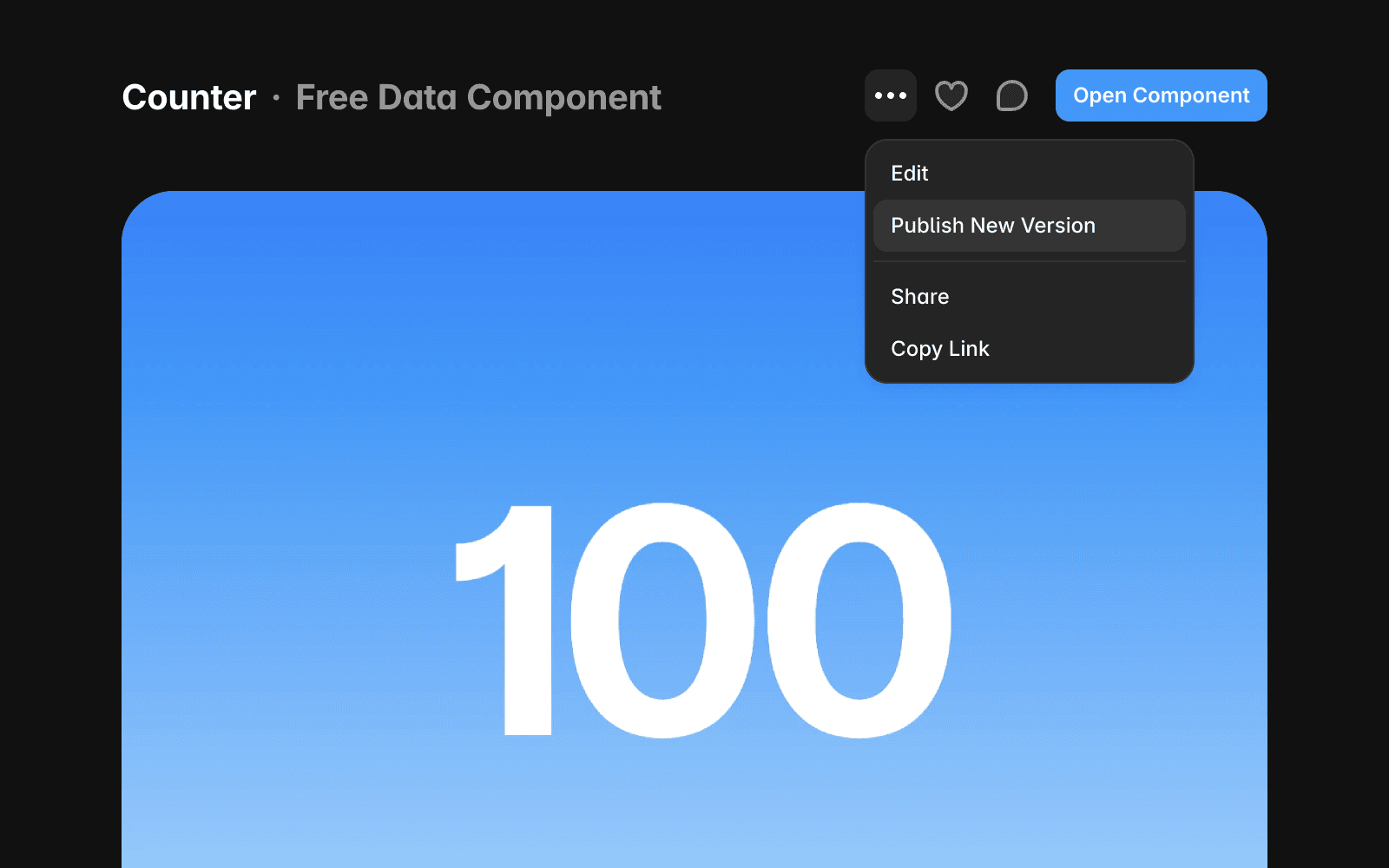
Click the three-dot menu.
Select Publish New Version.
Review the changes in the confirmation modal.
Click Publish.
Framer retrieves the latest version of your component and publishes it as a new version in the Community. The new version becomes available immediately for anyone who installs or updates your component.
After you publish
After publishing, you can:
Edit the name, description, images, pricing, and other details.
Publish new versions of your component when you’re ready to release updates.
Reach new users through the Marketplace and the Community feed.
Changes you make to your component in Framer do not automatically update the published version. This ensures users always have access to a stable version until you choose to publish an update.
You keep 100% of any revenue generated by your component.
Make your component stand out
A few simple improvements can help more people discover your component:
Create a polished and interactive live preview.
Write a clear and descriptive byline.
Showcase different states or configurations in your screenshots.
Choose categories that accurately match your component.
Share a post in the Community feed to increase visibility.
If you have questions about publishing components, contact the Framer team at creators@framer.com.
FAQ
Do I need approval before my component is published?
No. Components are published immediately after you submit them. There is no review process or waiting period.
Where can I find my component URL?
Open the Assets panel in Framer, right-click the component, and select Copy URL.
Can I edit my component after publishing?
Yes. You can update your component details, images, pricing, and preview URL at any time.
Updated
