Framer forms support multiple field types beyond basic text inputs, all added directly from the canvas.
Add a field to a form
Field types are added from the canvas. To add a new field type, follow these steps.
Select the Form layer on the canvas.
Click the “+” icon in the bottom toolbar.
Choose a field type to add it to the form.
The new field automatically inherits the form’s styling, ensuring visual consistency.
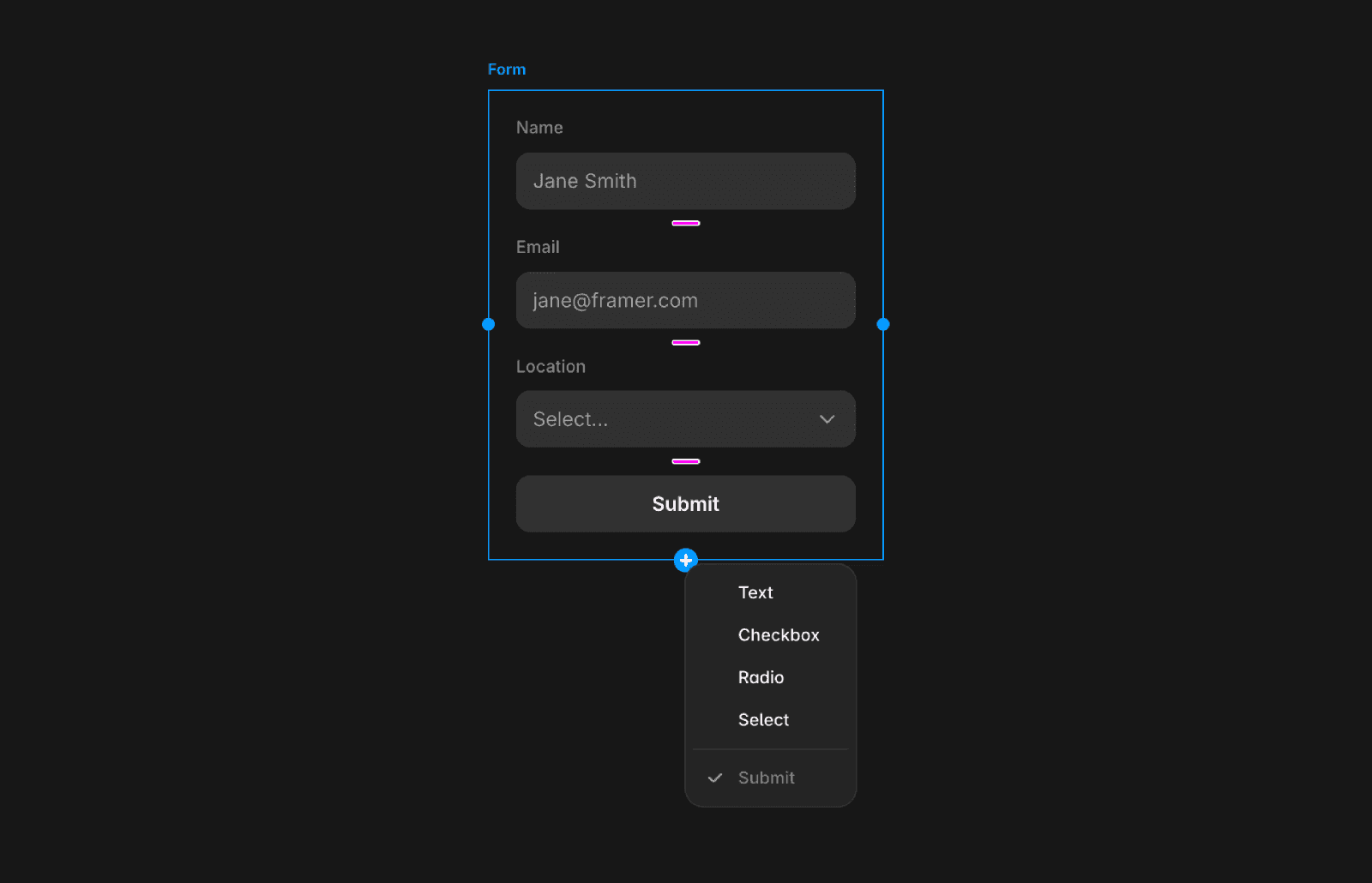
Available field types
When you open the “+” menu, you can add:
Text: Single-line input (for example, name or subject)
Checkbox: On/off toggle for consent or agreements
Radio: Set of mutually exclusive options
Select: Dropdown with predefined options
If you remove the Submit button, you can re-add it from this same menu.
Configuring a field
After adding a field, select it and use the properties panel on the right to adjust its settings. You can:
Set the field name used in submissions (email, Google Sheets, or webhooks)
Mark the field as required
Add placeholder text or default values
Define options for select and radio fields
Set the default checked state for checkboxes
Common use cases
Different field types help structure form responses more clearly:
Newsletter consent: Add a checkbox such as “I’d like to receive the newsletter.” Submissions include a true or false value.
Terms and conditions: Add a required checkbox to ensure users agree before submitting.
Contact reason: Use a select or radio group to categorize requests (for example, Support, Sales, or Other).
FAQ
Why can’t I find the field options in the Layers panel?
Field types are only available through the canvas. Select the form or an existing field to reveal the “+” icon.
Can I re-add the Submit button after deleting it?
Yes. Open the “+” menu in the canvas and select the Submit button to add it back to the form.
What’s the difference between radio buttons and a select field?
Radio buttons display all options at once and allow a single selection. A select field uses a dropdown, which is better for longer lists or saving space.
