How to use branches in Framer
Learn how to make, review, and apply changes without affecting your published site.
Branches give you a safe place to work on changes before they become part of your main project. Use a branch to edit the canvas, update CMS content, test AI-generated changes, or collaborate with teammates while keeping your current site ready to publish.
What is a branch?
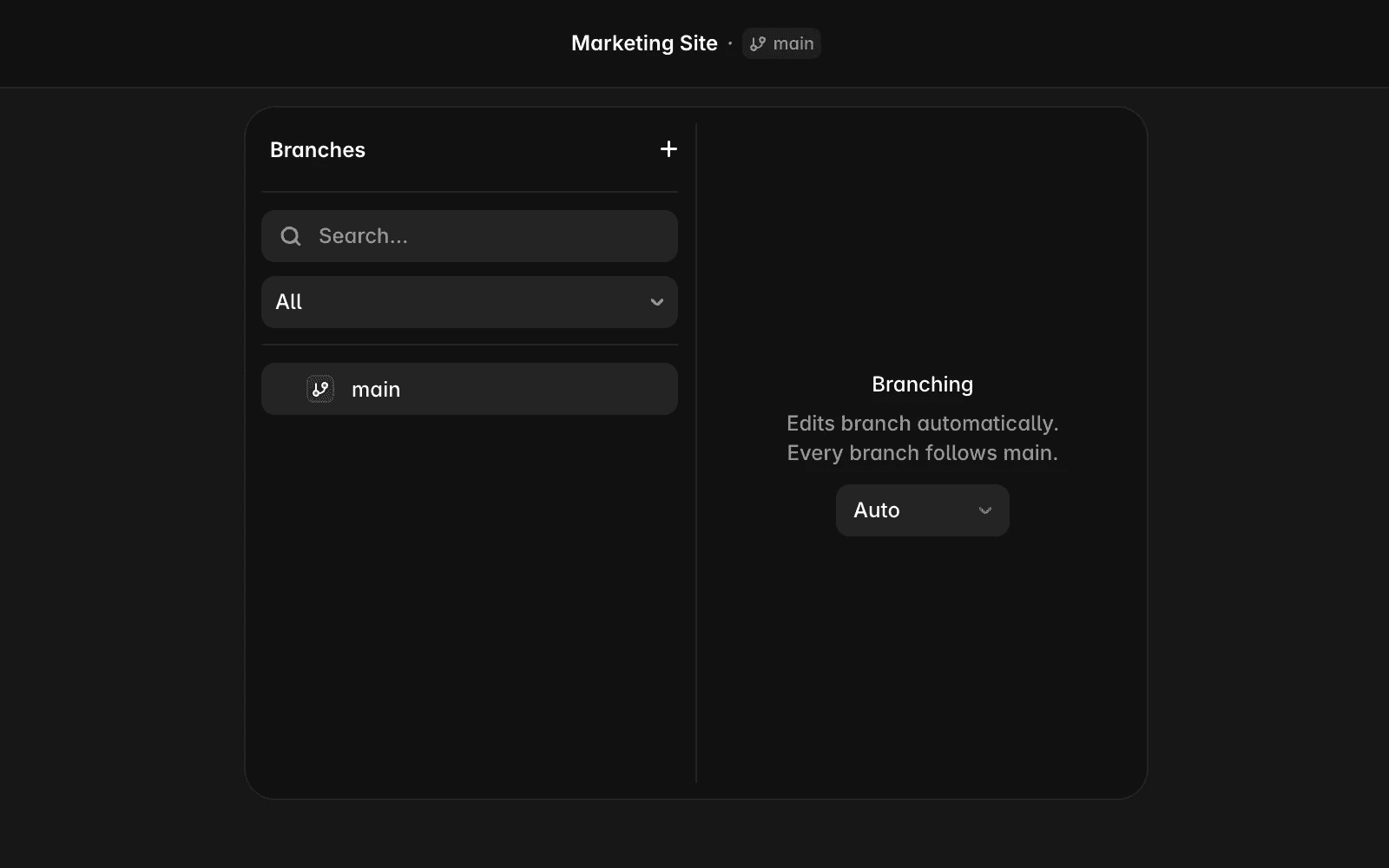
A branch is an isolated copy of your project where you can make changes without affecting main.
main is the reviewed version of your project and the version you publish to your live site. Branches exist alongside main and only affect it after their changes are reviewed and applied.
Think of a branch as a draft version of your entire project, not just a single page or CMS item.
Create a branch
To create a new branch:
Open your project in Framer.
Click the branch indicator in the top bar. By default, it displays “main”.
Select New Branch.
Enter a name for the branch.
Start editing.
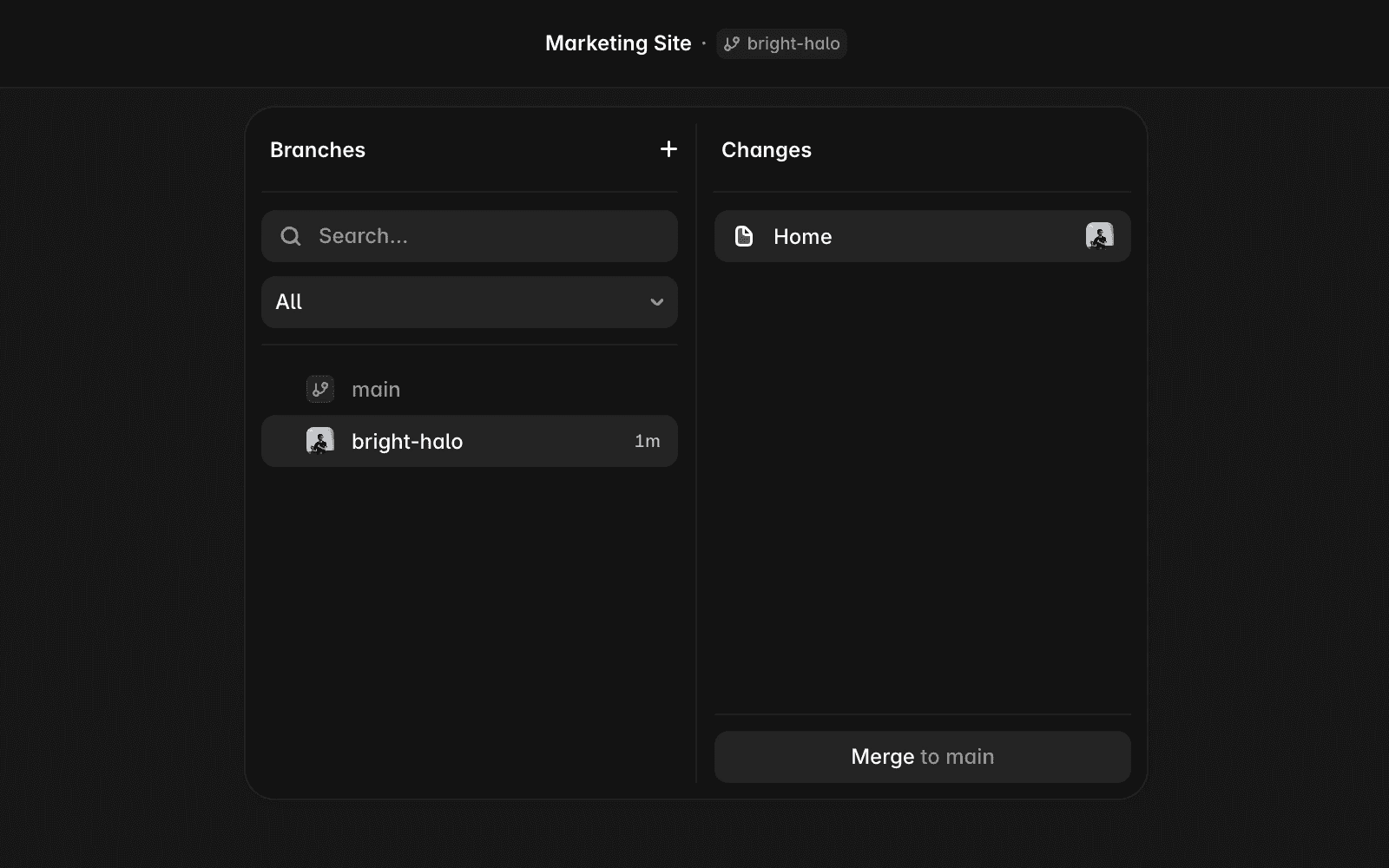
Changes made on a branch remain there until they are applied. You can create multiple branches for different projects, allowing teammates or AI agents to work independently without changing main.
Edit on a branch
Once you’re working on a branch, you can make the same types of changes available in your project, including:
Canvas edits
CMS updates
Text changes
Page structure changes
AI-generated updates
Because branches are isolated from main, your live site remains unaffected while work is in progress. You can continue publishing main even when one or more branches are still being edited.
You can also publish a branch to generate a branch preview URL. Share this URL with teammates, clients, or stakeholders to review your changes before they are applied to main. Publishing a branch does not publish main, so your live site remains unchanged.
Review and apply changes
When you’re ready to bring branch changes into main:
Open the branch you want to apply.
Click Review Changes.
Review the diff to see what changed.
Click Apply if everything looks correct.
Publish main when you’re ready to update your live site.
Applying a branch updates main, but it does not publish your site. Your live site only changes after main is published.
If you later decide to undo an applied branch, you can revert the change from version history. The reverted changes are moved back into a draft so they can be reviewed or reused.
Create a branch from another branch
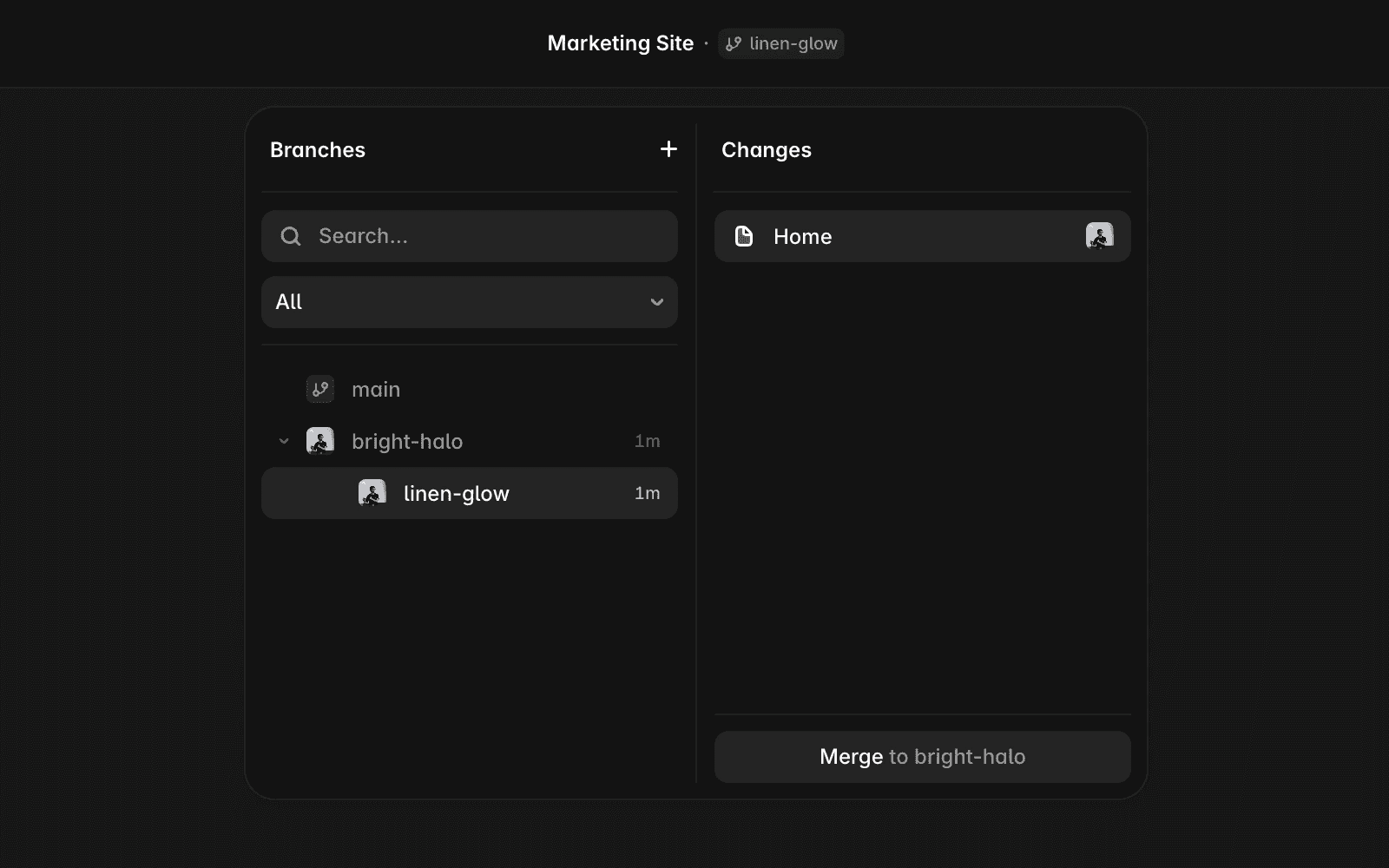
You can create a branch from an existing branch instead of main.
This is useful when a larger project needs to be split into smaller tasks. For example, you might have a redesign branch and create a separate branch from it for content updates or a specific section of the site. Once that work is complete, apply it back to the branch it originated from.
Common branch workflows
Branches support a variety of workflows:
Workflow | Description |
|---|---|
Parallel work | Multiple teammates or AI agents can work on separate branches at the same time. |
AI-generated changes | Run the Framer agent on a branch, review the results, and apply changes when ready. |
Redesigns | Keep a long-running redesign separate while continuing to ship updates from main. |
Content review | Draft and review content changes before they become part of main. |
Incremental rollouts | Break larger projects into smaller branches and apply them gradually. |
Resolve overlapping changes
If two branches modify the same content, review the changes carefully before applying them.
In some cases, you may need to manually decide which version to keep.
FAQ
Can I publish a branch directly?
Yes. You can publish a branch to generate a branch preview URL and share it with others for review. Publishing a branch does not affect main or your live site. To make changes live, you must apply them to main and publish main.
Can multiple people work on different branches at the same time?
Yes. Branches are designed for parallel work, allowing teammates and AI agents to make changes independently without affecting main.
What happens when I revert an applied branch?
Reverting an applied branch removes those changes from main and moves them back into a draft state. This allows you to review, edit, or reuse the changes later.
Updated
