How to add content to your CMS with Framer Agents
Learn how to create collections and fill them with content from a prompt.
Framer Agents can do more than build pages. They can also set up your CMS and fill it with content. You describe the kind of content you want to manage, like blog posts, team members, or job listings, and the agent creates the collection, sets up the fields, and adds items for you. This guide walks through building a collection with an agent, populating it, importing data you already have, and what to check before you publish.
Create a collection with the agent
Open the CMS and use the Agent chat panel on the right. Type your request in the “Ask Framer…” field. To give the agent specific context, select the rows or cells you want it to work on and choose “Add to Agent” first.
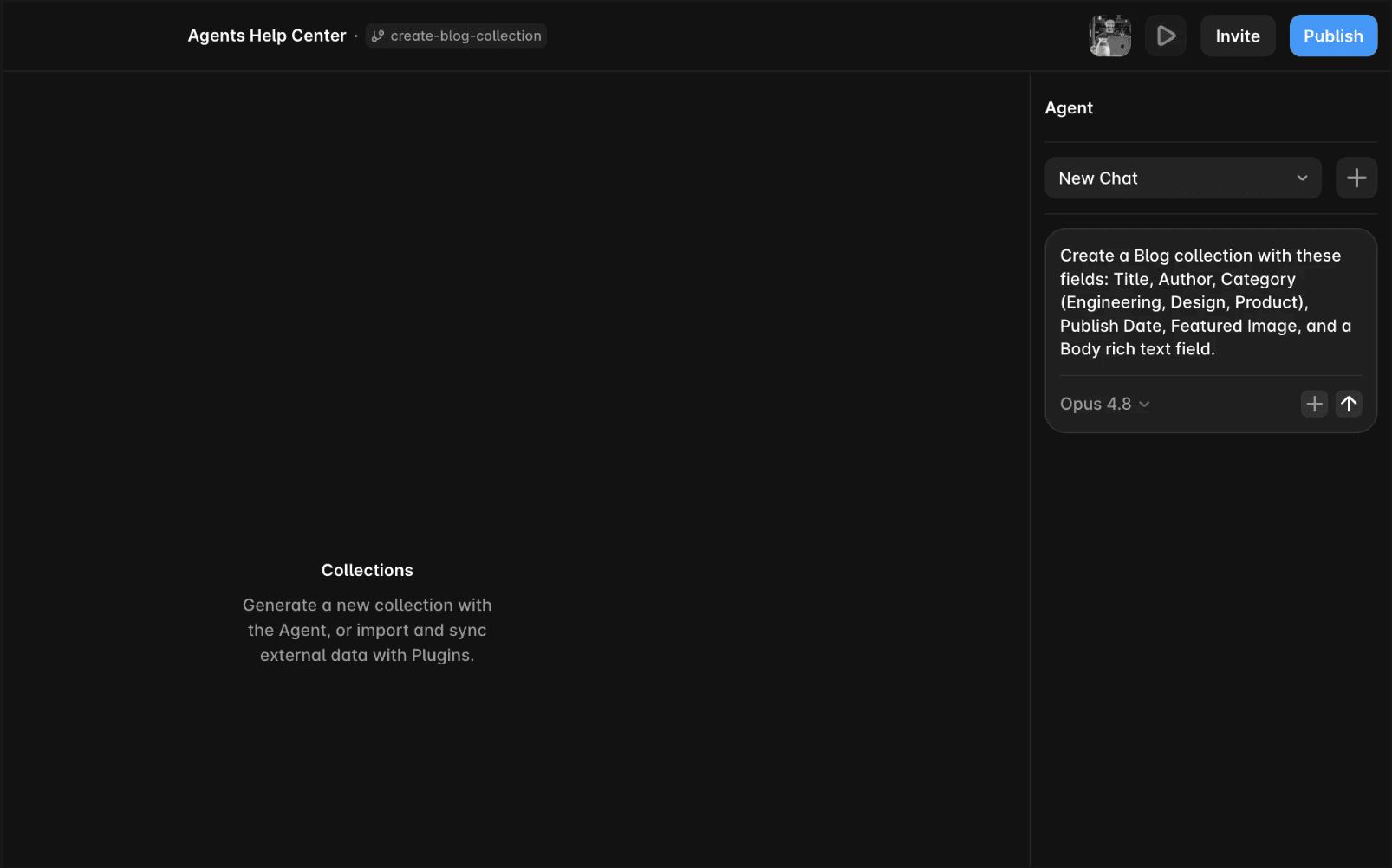
Then describe the type of content you want to manage and the fields each item needs. The agent creates the collection and sets up each field with the right type.
For example:
Create a Blog collection with these fields: Title, Author, Category (Engineering, Design, Product), Publish Date, Featured Image, and a Body rich text field
Be specific about field types, because that is what saves you cleanup later. A publish date works best as a date field, a category with a fixed set of choices as an option field, and a thumbnail as an image field. The clearer you are, the closer the result lands to what you need.
Add items to your collection
Once the collection exists, you can ask the agent to add items. This is handy for placeholder content while you design, or for generating a first batch you will refine later.
For example:
Add 8 blog posts to the Blog collection with realistic titles and short excerpts about web design.
Treat generated items as a starting point. When you do not supply the details, the agent fills in plausible placeholder text rather than real facts, so review titles, copy, dates, and names and swap in your own content before publishing.
Import content you already have
If your content already lives in a spreadsheet, you can bring it in instead of recreating it by hand. Attach the CSV to your prompt, and the agent reads the file, maps the columns to your CMS fields, and creates or updates the collection items directly.
For example:
Import this CSV into a new Team collection and map the columns to the matching fields.[Attach file]
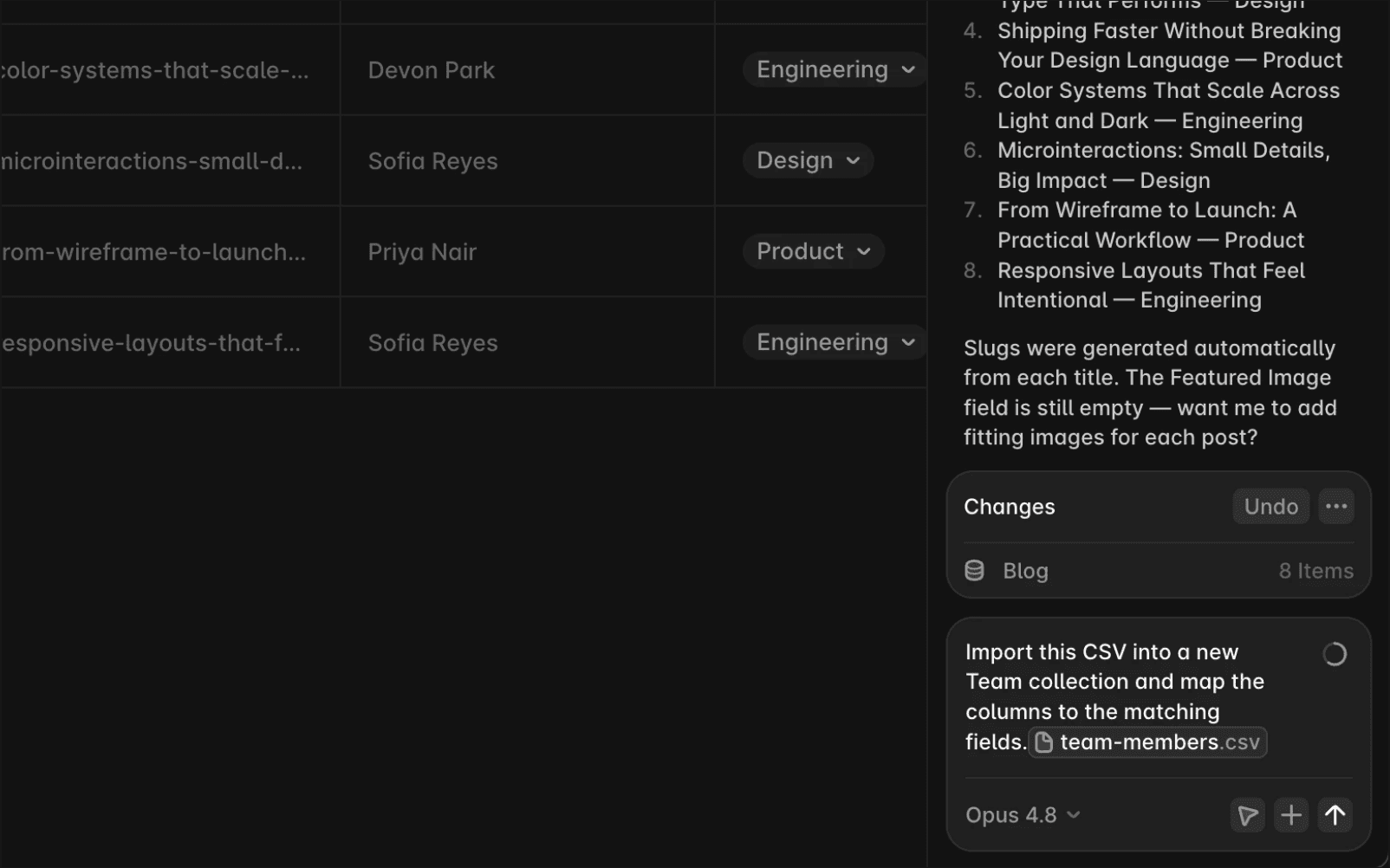
After it finishes, review the imported fields, especially dates, options, references, and images, since these are the most common things to need a quick fix.
Connect your content to pages
Adding the collection and its items is one of the agent’s strongest skills. The agent can also help connect CMS data to collection lists and detail pages, but polished custom blog index and detail layouts, especially with filtering, pagination, references, or conditional sections, may still need manual review and canvas edits.
A reliable approach is to let the agent set up the collection and items first, then connect them to pages and review the result closely. If a connected layout does not look right, you can adjust it yourself on the canvas like any other Framer page. For conditional layouts on detail pages, see How to create flexible CMS detail pages.
FAQ
Will the agent write real content or placeholder text?
Unless you provide the details, the agent generates plausible placeholder content to get you started. It is meant as a first draft, so review and replace it with your own content before publishing.
Can I edit the CMS items the agent creates?
Yes. Items the agent adds behave exactly like items you create by hand. You can open any item to edit its fields, or click “Edit Fields” on the collection to change its structure at any time.
Can the agent import a CSV?
Yes. Attach the CSV to your prompt and the agent reads it, maps the columns to your CMS fields, and creates or updates the items directly. Review the imported fields afterward, especially dates, options, references, and images.
Updated
