How to set up Framer for Claude Code, Codex, and Cursor

Learn how to connect your local LLM agent like Claude Code, Codex, or Cursor to your Framer projects. You can use your Local LLM to to manage CMS content, localization, redirects, pages.

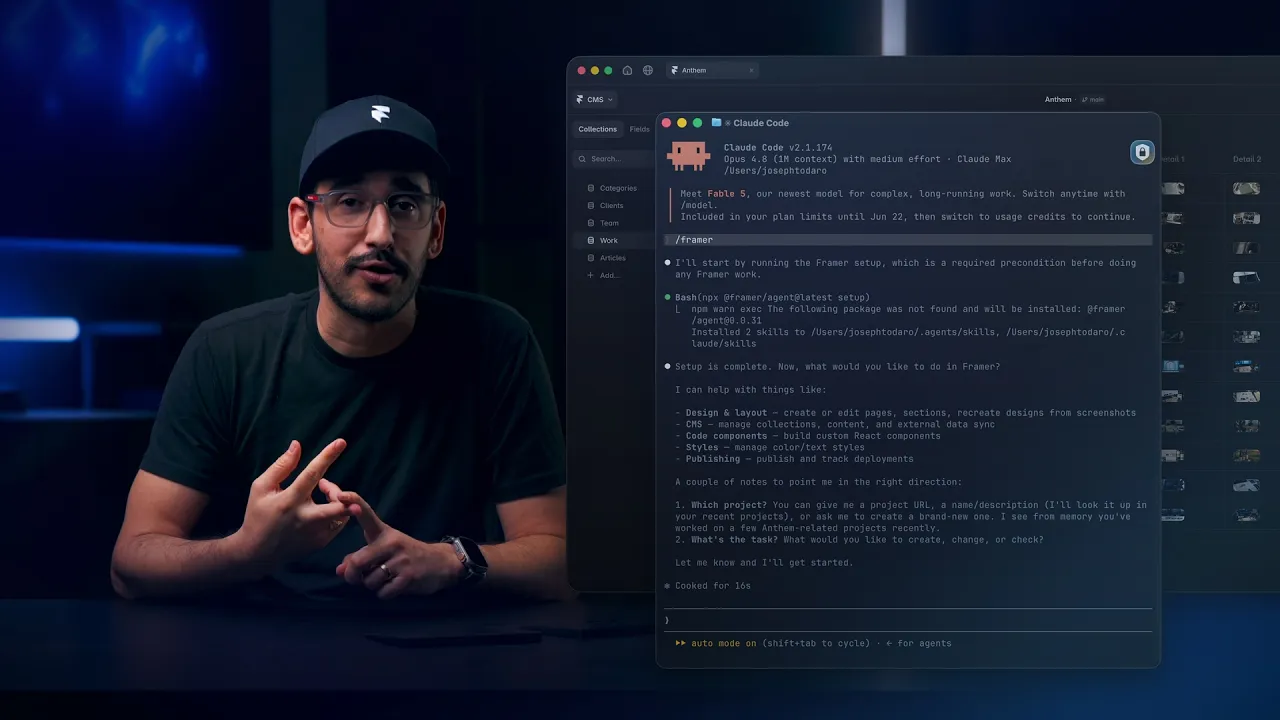
Framer for local LLM agents lets your agent connect directly to your Framer projects through Framer’s API. You can use it to manage CMS content, localization, redirects, pages, and other supported project changes.
Before you start

You'll need:

  • A Framer project

  • A supported local LLM agent (Claude Code, Codex, or Cursor) installed on your computer

  • Node.js version 24 or newer

Set up Framer for your local LLM agent

Open your preferred local LLM agent and paste the prompt below:


Your agent will verify your Node.js installation, install or update Node.js if needed, and run the Framer setup command.

Set up manually

If you prefer to complete the setup yourself:

  1. Check your Node.js version:

  2. If your version is lower than 24, install Node.js version 24 or newer.

  3. Run the setup command:

Connect your local LLM agent to a Framer project

After setup is complete:

  1. Open your Framer project.

  2. Copy the project link:

    • In a browser, copy the URL from the address bar.

    • In the desktop app, right-click the project tab and select Copy Project Link.

  3. Start your agent (for example: run claude to start Claude Code)

  4. Ask your agent to work with your project. For example:

    What blog posts do I have in <Framer project link>

The first time your agent connects to a project, you'll be asked to authorize access in your browser.

What your local LLM agent can help with

Your agent can help with supported project updates, including:

  • Updating CMS content

  • Creating collections and populating them from provided source material

  • Updating localization content and translations

  • Setting up redirects from a list of URLs

  • Creating or updating pages and sections

  • Generating content ideas, such as draft blog posts for SEO

Your agent can also assist with design-related changes. Depending on the requested update, changes may take several minutes to complete and may require review and refinement in Framer.

Known limitations

The following actions aren't currently supported:

  • Deleting pages

  • Renaming pages

  • Moving pages

  • Updating site settings

  • Updating project settings

  • Assigning code overrides to nodes

  • Accessing analytics data

Troubleshooting

If setup fails, verify that Node.js version 24 or newer is installed:

If your agent can't connect to your Framer project, run the setup command again:

If a browser window opens during authorization, complete the authorization flow before continuing.

If you're still experiencing issues, contact Framer Support for additional help.

Framer for local LLM agents lets your agent connect directly to your Framer projects through Framer’s API. You can use it to manage CMS content, localization, redirects, pages, and other supported project changes.

Before you start

You'll need:

  • A Framer project

  • A supported local LLM agent (Claude Code, Codex, or Cursor) installed on your computer

  • Node.js version 24 or newer

Set up Framer for your local LLM agent

Open your preferred local LLM agent and paste the prompt below:


Your agent will verify your Node.js installation, install or update Node.js if needed, and run the Framer setup command.

Set up manually

If you prefer to complete the setup yourself:

  1. Check your Node.js version:

  2. If your version is lower than 24, install Node.js version 24 or newer.

  3. Run the setup command:

Connect your local LLM agent to a Framer project

After setup is complete:

  1. Open your Framer project.

  2. Copy the project link:

    • In a browser, copy the URL from the address bar.

    • In the desktop app, right-click the project tab and select Copy Project Link.

  3. Start your agent (for example: run claude to start Claude Code)

  4. Ask your agent to work with your project. For example:

    What blog posts do I have in <Framer project link>

The first time your agent connects to a project, you'll be asked to authorize access in your browser.

What your local LLM agent can help with

Your agent can help with supported project updates, including:

  • Updating CMS content

  • Creating collections and populating them from provided source material

  • Updating localization content and translations

  • Setting up redirects from a list of URLs

  • Creating or updating pages and sections

  • Generating content ideas, such as draft blog posts for SEO

Your agent can also assist with design-related changes. Depending on the requested update, changes may take several minutes to complete and may require review and refinement in Framer.

Known limitations

The following actions aren't currently supported:

  • Deleting pages

  • Renaming pages

  • Moving pages

  • Updating site settings

  • Updating project settings

  • Assigning code overrides to nodes

  • Accessing analytics data

Troubleshooting

If setup fails, verify that Node.js version 24 or newer is installed:

If your agent can't connect to your Framer project, run the setup command again:

If a browser window opens during authorization, complete the authorization flow before continuing.

If you're still experiencing issues, contact Framer Support for additional help.

Framer for local LLM agents lets your agent connect directly to your Framer projects through Framer’s API. You can use it to manage CMS content, localization, redirects, pages, and other supported project changes.

Before you start

You'll need:

  • A Framer project

  • A supported local LLM agent (Claude Code, Codex, or Cursor) installed on your computer

  • Node.js version 24 or newer

Set up Framer for your local LLM agent

Open your preferred local LLM agent and paste the prompt below:


Your agent will verify your Node.js installation, install or update Node.js if needed, and run the Framer setup command.

Set up manually

If you prefer to complete the setup yourself:

  1. Check your Node.js version:

  2. If your version is lower than 24, install Node.js version 24 or newer.

  3. Run the setup command:

Connect your local LLM agent to a Framer project

After setup is complete:

  1. Open your Framer project.

  2. Copy the project link:

    • In a browser, copy the URL from the address bar.

    • In the desktop app, right-click the project tab and select Copy Project Link.

  3. Start your agent (for example: run claude to start Claude Code)

  4. Ask your agent to work with your project. For example:

    What blog posts do I have in <Framer project link>

The first time your agent connects to a project, you'll be asked to authorize access in your browser.

What your local LLM agent can help with

Your agent can help with supported project updates, including:

  • Updating CMS content

  • Creating collections and populating them from provided source material

  • Updating localization content and translations

  • Setting up redirects from a list of URLs

  • Creating or updating pages and sections

  • Generating content ideas, such as draft blog posts for SEO

Your agent can also assist with design-related changes. Depending on the requested update, changes may take several minutes to complete and may require review and refinement in Framer.

Known limitations

The following actions aren't currently supported:

  • Deleting pages

  • Renaming pages

  • Moving pages

  • Updating site settings

  • Updating project settings

  • Assigning code overrides to nodes

  • Accessing analytics data

Troubleshooting

If setup fails, verify that Node.js version 24 or newer is installed:

If your agent can't connect to your Framer project, run the setup command again:

If a browser window opens during authorization, complete the authorization flow before continuing.

If you're still experiencing issues, contact Framer Support for additional help.

FAQ

  • Which local LLM agents are supported?

    Framer for local LLM agents works with Claude Code, Codex, and Cursor.

  • Can my agent make changes to my project?

    Yes. Your agent can create and update supported content and project resources through Framer’s API. Review any changes before publishing them.

    Once setup is complete, you can start using your local LLM agent to help manage and update your Framer projects.

  • Why am I being asked to authorize access?

    The first time your agent connects to a Framer project, you'll be asked to grant access through your browser. This authorization is required before your agent can interact with the project.

Updated